12 open-source tools to diagnose laptop problems
A practical guide to Linux rescue environments and open-source utilities for checking storage, memory, temperature, battery drain, partitions and recoverable data.
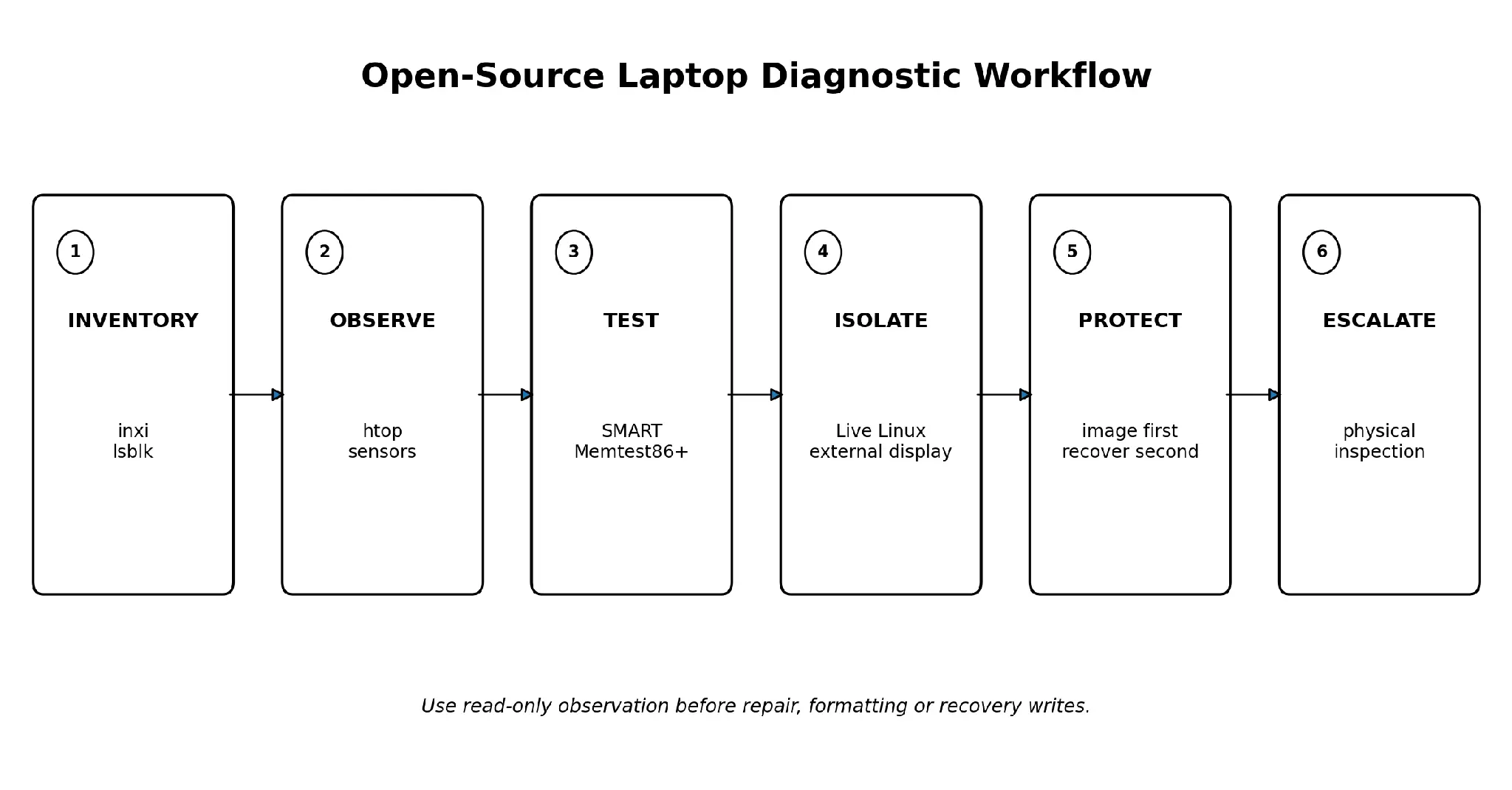
Figure 1. Start with read-only observation, then choose the safest test that separates likely causes.
Quick Answer
The most useful open-source laptop diagnostic stack combines a bootable Linux environment with tools for storage health, memory testing, thermal monitoring, process analysis, partition inspection and data recovery. SystemRescue provides the portable environment; smartmontools and nvme-cli read drive health; Memtest86+ checks x86 system memory; lm-sensors, htop and PowerTOP expose heat and power patterns; GParted, TestDisk, PhotoRec and GNU ddrescue handle partitions and recovery. Compatibility is broad on standard x86 laptops, more limited on Intel MacBooks, and different again on Apple-silicon MacBooks.
Key Takeaways
- Use diagnostic tools to collect evidence, not to guess which part should be replaced.
- Create a backup or disk image before filesystem repair, partition changes or file recovery.
- SMART data can reveal drive warnings, but a passing health status does not guarantee that a drive will not fail.
- Memtest86+ is designed for x86 and UEFI or legacy systems; it is not a direct test for Apple-silicon unified memory.
- On Apple-silicon MacBooks, open-source tools are often most useful for external drives, files and networked diagnostics, while internal hardware needs model-specific Apple tools and physical testing.
- When a laptop has swelling, liquid exposure, smoke, a burning smell, severe heat or exposed damage, stop software testing and arrange a safe physical assessment.
Why Open-Source Diagnostic Tools Are Valuable
Laptop faults rarely announce their cause clearly. A machine that freezes may have failing storage, unstable memory, high temperature, a software process or a damaged board. A battery that drains quickly may be worn, but the same symptom can come from a background task or poor power management. Open-source tools help separate these possibilities by exposing data that the normal desktop hides.
They are especially useful because the method is transparent. Commands, source code and documentation can be reviewed, repeated and compared. A technician can save the output, explain what was measured and retest after a change. This is more reliable than replacing a part because one symptom “looks familiar.”
For users choosing a friendly Linux desktop before building a diagnostic toolkit, OpenSourceFeed’s coverage of Linux Mint 22.2 shows a current long-term-support option. Lightweight systems such as Q4OS 6.7 can also be useful on older x86 laptops, although a dedicated rescue image is normally better for repair work.
A quotable rule for laptop diagnostics
Open-source tools are best at revealing evidence. They do not replace a backup, model-specific knowledge or physical inspection.
The 12-Tool Diagnostic Stack at a Glance
| Tool | Best for | Runs from | Main limitation |
|---|---|---|---|
| SystemRescue | Booting an independent rescue environment | x86-64 USB or optical media | Not a normal Apple-silicon rescue path |
| inxi | Hardware and software inventory | Linux terminal | Reports what the operating system can see |
| smartmontools | ATA, SATA, SAS and supported NVMe health | Linux, macOS and other systems | SMART cannot predict every failure |
| GNOME Disks | Graphical SMART, imaging and disk overview | GNOME-based Linux desktop | Write actions must be used carefully |
| nvme-cli | Detailed Linux NVMe controller and health logs | Linux terminal | Does not expose proprietary Apple internal storage in macOS |
| Memtest86+ | Boot-time x86 memory testing | UEFI or legacy x86 boot | Not for Apple-silicon unified memory |
| lm-sensors | Temperatures, fan and voltage sensors | Linux terminal | Sensor support varies by laptop |
| htop | Processes, CPU and memory pressure | Linux or other Unix-like systems | Shows software load, not the physical cause |
| PowerTOP | Power use and wake-up activity | Linux, strongest on Intel platforms | Estimates depend on hardware support |
| GParted | Partition layout and filesystem operations | Linux desktop or live media | Changes can destroy data if misapplied |
| TestDisk / PhotoRec | Lost partitions and file recovery | Linux, macOS, Windows and BSD | Recovered filenames and folders may be lost |
| GNU ddrescue | Imaging unstable storage with a mapfile | Linux and other supported Unix-like systems | Wrong source or destination selection is dangerous |
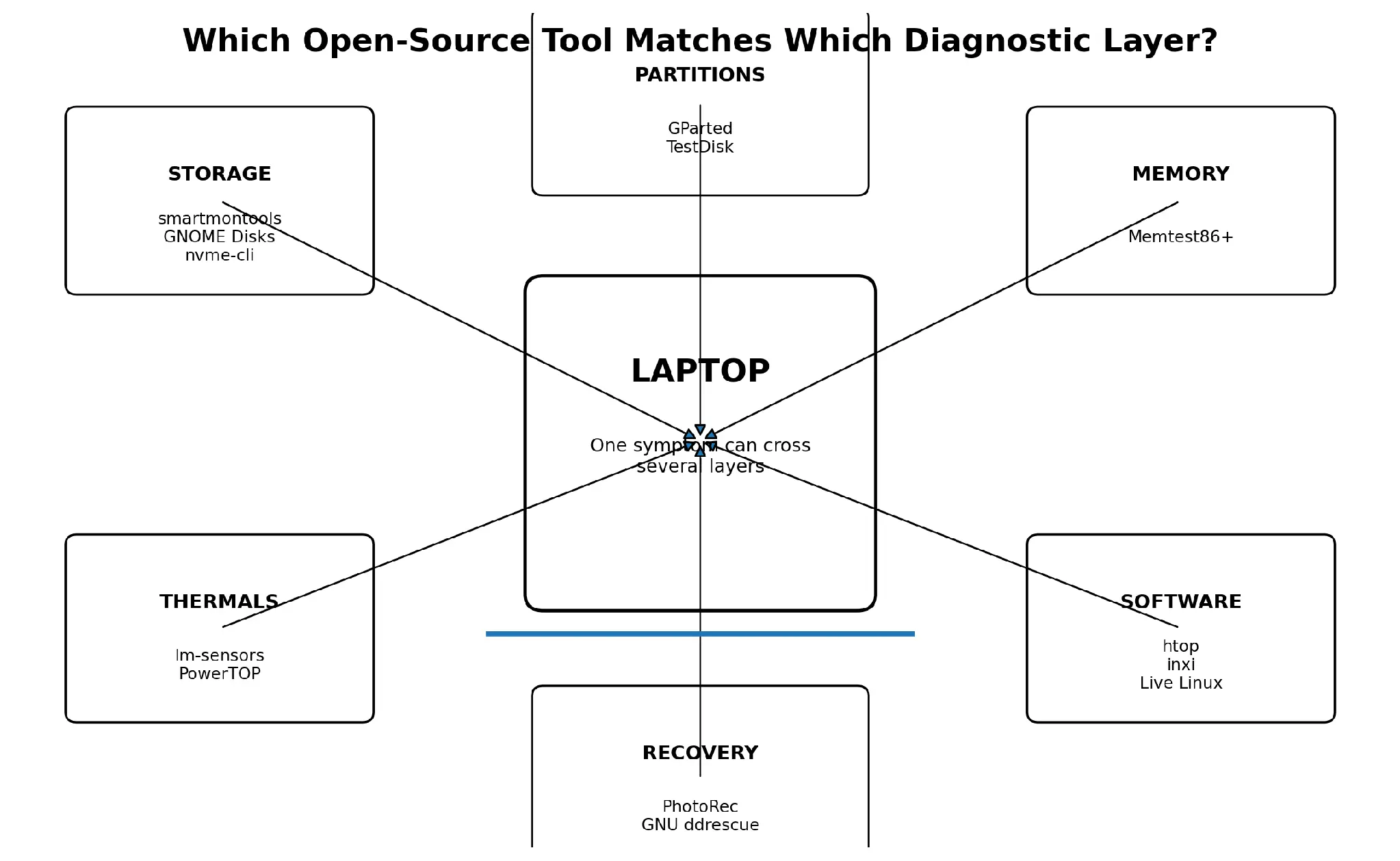
Figure 2. Match the tool to the layer being tested instead of running every utility without a question.
1. SystemRescue: A Portable Linux Repair Environment
SystemRescue is a bootable Linux system designed for repairing computers and recovering data after a crash. Its official documentation lists partitioning, filesystem, imaging, network and administrative utilities in one environment. Because it runs independently from the installed operating system, it can help answer a basic question: does the laptop still fail when its normal Windows or Linux installation is not running?
A live environment is useful for standard x86 laptops with startup errors, suspected storage problems or an operating system that will not boot. It also reduces the need to install diagnostic software onto a possibly failing disk. The first actions should be read-only: identify drives, check health, mount important data cautiously and create a backup or image.
Do not assume that every MacBook can use a normal x86 rescue ISO. Intel Mac compatibility depends on firmware, security and driver support. Apple-silicon Macs use a different architecture and boot process, so typical x86 SystemRescue media will not start on them.
2. inxi: Build a Reliable Hardware Inventory
inxi produces a structured summary of the machine: processor, graphics, memory, storage, battery, network, kernel and desktop environment. This inventory is valuable because laptop model names alone may not reveal the installed storage controller, Wi-Fi chipset or graphics hardware.
Start with inventory before interpreting errors. A diagnostic command written for a SATA drive will not help if the machine uses NVMe. A thermal guide for one graphics stack may not apply to another. Saving an inxi report also makes remote support and second opinions more accurate.
3. smartmontools: Read Storage Health and Self-Test Data
smartmontools contains smartctl and smartd. The project supports SMART and related health data from many ATA, SATA, SCSI, SAS and NVMe devices. smartctl can identify a drive, display health information and request supported self-tests. smartd can monitor drives over time.
The most useful fields depend on the storage type. For hard drives, reallocated sectors, pending sectors and read errors may matter. SSD and NVMe devices can report percentage used, media errors, temperature, unsafe shutdowns and available spare capacity. Always compare raw values with the drive documentation because vendors do not encode every attribute in the same way.
A “passed” overall result is not a guarantee. Some failing drives provide little warning, and external USB bridges may hide SMART data. Repeated I/O errors, disappearing storage or corrupted files should be treated seriously even when one status line looks normal.
4. GNOME Disks: Graphical SMART, Imaging and Device Inspection
GNOME Disks is a graphical utility for viewing storage devices, SMART information, partitions and benchmark data. It can also create or restore disk images and write bootable images to USB media. This makes it easier for users who are not comfortable reading every smartctl field in a terminal.
The safest use is inspection and imaging. Benchmarking a failing drive adds workload and should not be the first response to unusual noises, repeated disconnects or read errors. Partition formatting, deletion and image restoration are destructive actions, so the selected device must be checked carefully.
5. nvme-cli: Deeper NVMe Information on Linux
nvme-cli is the Linux command-line interface for NVMe devices. It can list controllers and namespaces, display identification data and read the NVMe SMART or health log. This is useful on many modern Windows and Linux laptops whose internal storage appears as /dev/nvme0 and /dev/nvme0n1 in Linux.
Useful evidence can include critical warnings, temperature, percentage used, available spare, media and data-integrity errors, power cycles and unsafe shutdowns. The values should be interpreted together. A high unsafe-shutdown count may reflect repeated forced power-offs rather than a defective drive, while media errors deserve stronger attention.
Apple internal storage does not behave like a removable standard NVMe drive that can simply be tested with nvme-cli from macOS. On Apple-silicon MacBooks, internal storage is integrated into Apple’s platform and requires Apple-specific diagnostics and repair knowledge. nvme-cli remains valuable for external NVMe drives and standard Linux laptops.
6. Memtest86+: Test x86 System Memory Outside the Operating System
Memtest86+ is an open-source memory tester that boots independently of the installed operating system. Its current documentation supports direct boot through 32-bit UEFI, legacy BIOS or a compatible bootloader. Running outside Windows or Linux helps remove normal applications and drivers from the test.
Memory errors can cause freezes, corrupted archives, unexpected restarts and installation failures. One complete pass without errors is useful but not absolute proof; intermittent faults may require longer testing and different temperatures. If errors appear, record the test, address and configuration before changing modules.
This tool is for x86 systems. It is not a direct test for the unified memory in Apple-silicon MacBooks. Many recent MacBooks also use soldered memory, so module swapping is not a normal troubleshooting step.
7. lm-sensors: Read Temperature and Fan Sensors
lm-sensors exposes temperature, fan-speed and voltage data supported by the Linux hardware-monitoring subsystem. The sensors command can show whether CPU or other reported temperatures rise during a workload and fall after the workload ends.
Thermal data should be compared with context. High temperature during video rendering is different from severe heat while the laptop is idle. Missing fan data does not prove the fan is broken; many laptops do not expose every sensor through standard interfaces. Physical dust, blocked vents, damaged fans and dried thermal material still require inspection.
8. htop: Find Software Processes Behind Heat and Slowness
htop is an interactive process viewer that shows CPU use, memory use, load and running processes. It is one of the fastest ways to separate a software workload from a hardware assumption. If one process continuously uses a large share of CPU, it can explain heat, fan noise and short battery life.
The result must be reproduced. A process that spikes for a few seconds may be normal. A process that remains high after the laptop is idle is more meaningful. Do not terminate unfamiliar system processes at random; record the name, user and command, then investigate the application or service responsible.
9. PowerTOP: Analyse Linux Power Use and Wake-Ups
PowerTOP reports power-related activity, wake-ups and device behaviour on Linux. It can help identify software that prevents a laptop from entering low-power states. This is useful when battery drain is strong in Linux but the battery itself does not show clear health warnings.
PowerTOP is strongest on supported Intel hardware, and its estimates vary by platform. A recommendation to change a power setting should be tested one at a time and reversed if it affects network, USB or sleep reliability. It is a software power-analysis tool, not a replacement for battery capacity testing.
10. GParted: Inspect Partitions Before Changing Them
GParted provides a graphical view of disks, partition tables and filesystems. It can help identify unallocated space, unexpected partitions and a drive whose layout no longer matches the installed operating system.
Partition tools are powerful because they write structural information to the disk. Before resizing, moving, deleting or creating partitions, verify the device and keep a backup. On a drive with read errors, image the source first instead of repeatedly modifying it.
11. TestDisk and PhotoRec: Recover Partitions or Files
TestDisk focuses on partition and boot-sector recovery, while PhotoRec recovers files by recognising their internal signatures. The official documentation notes that PhotoRec can recover files even from a corrupted filesystem, but it may not preserve the original filenames or folder structure.
Recovery should target another storage device. Writing recovered files back to the source can overwrite data that has not yet been recovered. For an unstable drive, create an image first and work on the image rather than repeatedly scanning the original hardware.
12. GNU ddrescue: Image an Unstable Drive Before Recovery
GNU ddrescue is designed to copy data from a failing block device while keeping a mapfile of completed and difficult areas. The mapfile allows the job to resume and avoids reading the same bad region from the beginning each time.
ddrescue is valuable when a drive disconnects, slows dramatically or reports read errors. It is also easy to misuse because source and destination are specified at the device level. A reversed selection can overwrite the wrong disk. When the data is important, the drive is physically damaged or the correct device is uncertain, stop and use professional recovery assistance.
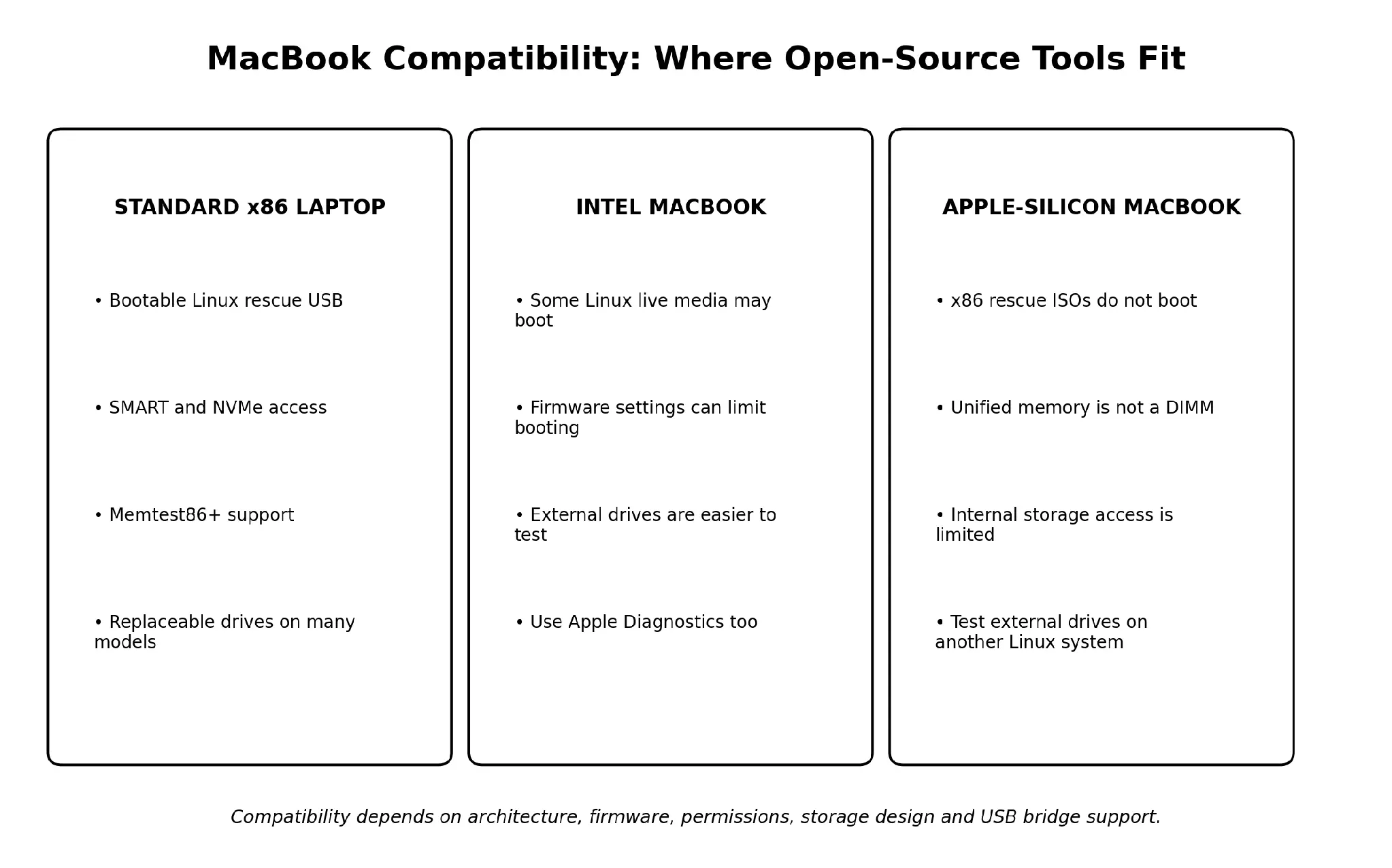
Figure 3. Architecture and storage design determine which open-source tools can access the hardware.
Standard Laptops, Intel MacBooks and Apple-Silicon MacBooks
| Diagnostic task | Standard x86 laptop | Intel MacBook | Apple-silicon MacBook |
|---|---|---|---|
| Boot normal Linux rescue USB | Usually supported | Possible on some models and settings | Typical x86 rescue images are not compatible |
| Test replaceable RAM | Possible on models with DIMMs | Most later models use soldered memory | Unified memory is integrated |
| Read standard SATA/NVMe SMART | Often direct | External drives and some interfaces | External drives are more practical |
| Use TestDisk or PhotoRec | Yes | Yes from macOS or Linux where supported | Yes for accessible files and external media |
| Diagnose internal Apple hardware | Limited relevance | Combine with Apple Diagnostics | Use Apple-specific diagnostics and physical testing |
A Safe Open-Source Diagnostic Sequence
1. Protect data and check safety
Back up important files. Stop for battery swelling, smoke, liquid, burning smell, exposed damage or severe heat.
2. Record the exact symptom
Note when it starts, what changed, whether it appears before login and whether movement or power affects it.
3. Identify the hardware
Use inxi, lsblk and the laptop model to identify storage, processor, memory and graphics.
4. Observe before writing
Check processes, temperatures, SMART data and logs without changing partitions or filesystems.
5. Run one controlled test
Choose the test that separates two likely causes: memory test, live Linux, known-good charger, external display or drive health test.
6. Image unstable storage
If reads fail or the drive disconnects, create an image before recovery attempts.
7. Escalate physical faults
Open the laptop only with the training, documentation and equipment required for that model.
Symptom-to-Tool Reference Table
| Symptom | Useful first tool | Evidence to look for | When software tools are not enough |
|---|---|---|---|
| Laptop is slow or hot | htop, sensors | Persistent CPU use, memory pressure, temperature pattern | Fan damage, blocked cooling or shutdown under light load |
| Storage errors or missing files | smartctl, GNOME Disks | SMART warnings, I/O errors, disconnects | Clicking, repeated disconnects or valuable irreplaceable data |
| Random freezes or installation failures | Memtest86+ on x86 | Repeatable memory errors | Soldered memory or board-level instability |
| Battery drains in Linux | PowerTOP, htop | Wake-ups, background process, device power state | Swelling, shutdowns or failed battery condition |
| Partition disappeared | GParted, TestDisk | Unexpected layout, lost partition structures | Unstable storage should be imaged first |
| Deleted files | PhotoRec on an image | Recoverable file signatures | Encrypted, physically damaged or highly valuable media |
Three Practical Diagnostic Examples
Example 1: A Linux laptop becomes hot after login
inxi identifies the hardware, htop shows a cloud-sync process using sustained CPU and sensors shows temperature dropping after the process is stopped. The same machine stays cool in a live environment.
Likely direction: a software workload, not immediate cooling-hardware replacement.
Example 2: An Intel laptop freezes during operating-system installation
The internal NVMe health log shows no media errors, but Memtest86+ reports repeatable memory errors at similar addresses.
Likely direction: memory or memory-channel instability requiring physical testing.
Example 3: A MacBook external backup drive disconnects
smartmontools through the USB enclosure reports read errors, and the drive becomes slower during repeated scans.
Likely direction: stop repeated testing, image the drive with a mapfile, and recover from the image or seek recovery help.
When Open-Source Tools Are Not Enough
Software diagnostics have limits. Internal display, battery, charging, liquid damage and logic-board faults still require model-specific physical testing and trained hands. If a fault is intermittent, worsens under transport, or involves components that cannot be safely accessed without specialised equipment, a local repair centre is the practical next step.
For MacBook owners, finding a nearby service point matters when post-repair testing needs to be repeated in person. As one example, MacBook diagnostics and repair in Singapore is available across multiple walk-in locations for users in that region. Before any visit, confirm the MacBook model, fault description, backup status and whether the device has liquid or impact history.
Frequently Asked Questions
What is the best open-source tool for laptop diagnostics?
There is no single best tool. SystemRescue provides the environment, while smartmontools, Memtest86+, lm-sensors, htop and recovery tools answer different questions.
Can open-source tools diagnose a MacBook?
They can analyse accessible files, external drives, processes and some hardware on Intel Macs. Apple-silicon internal hardware needs Apple-specific and model-specific methods.
Can smartmontools prove that an SSD is healthy?
No. SMART data provides useful warnings and history, but a passing result cannot guarantee that a drive will not fail.
Can Memtest86+ test a MacBook?
It is an x86 memory tester. It may be relevant to compatible Intel systems, but it is not a direct test for Apple-silicon unified memory.
What should I do before using GParted or TestDisk?
Back up or image the source, identify the correct device and avoid writing recovered data to the same drive.
Is PhotoRec safe for deleted-file recovery?
It is safest when run against a disk image and when recovered files are written to a separate healthy device.
Can open-source tools fix a swollen laptop battery?
No. Swelling is a physical safety issue. Stop using and charging the device and arrange trained battery service.
How do I diagnose a laptop that overheats?
Compare idle and workload temperatures, check htop for persistent CPU use, inspect ventilation and stop if severe heat or shutdowns continue.
When should I stop DIY data recovery?
Stop when the drive clicks, disconnects repeatedly, contains irreplaceable data, is encrypted or the source and destination devices are uncertain.
Conclusion
Open-source diagnostic tools can turn a vague laptop problem into measurable evidence. A live Linux environment separates the installed operating system from the test. Storage tools expose SMART and NVMe health, Memtest86+ tests x86 memory, thermal and process tools reveal software load, and recovery utilities help protect data when filesystems or drives fail.
The tools are most effective when used in sequence: protect data, identify hardware, observe without writing, run one controlled test and escalate physical faults. Compatibility matters, especially on MacBooks. Standard x86 laptops, Intel MacBooks and Apple-silicon MacBooks do not offer the same boot, memory or storage access.
The goal is not to run the largest number of commands. It is to choose the smallest safe test that separates likely causes. That approach makes open-source diagnostics useful to home users, Linux administrators and professional repair teams without confusing a software reading with a confirmed physical repair.
Comments
Comments are loaded when you choose to open them, which keeps the page faster and lighter.