How to transfer WhatsApp from iPhone to Android
Switching from iPhone to Android is usually the fun part — new phone, new features, a fresh start. Then you open WhatsApp and realize your entire chat history lives inside Apple’s ecosystem, and there’s no obvious button that moves it over to Android.
If you’re trying to figure out how to transfer WhatsApp from iPhone to Android, you’re dealing with one of the trickier device switches out there, mostly because Apple and Google simply don’t store WhatsApp backups in the same place. Here’s why that happens, what you can expect to keep, and how to move everything — chats, media, and yes, your sticker collection — over to your new Android phone.
Why iPhone to Android is harder than you think
The core problem comes down to where WhatsApp actually stores your backup. On iPhone, WhatsApp backs up to iCloud. On Android, it backs up to Google Drive. These two systems don’t talk to each other, so a backup created on one platform can’t simply be restored on the other. There’s no official Apple or Google tool that bridges that gap for WhatsApp specifically, unlike the more built-in transfer options available for Android-to-Android or iPhone-to-iPhone moves.
This is exactly why searches for how to transfer WhatsApp data from iPhone to Android turn up so many conflicting answers. Some methods only move contacts. Others only work with text-based chat exports. Very few actually carry over your full conversation history with media and stickers intact.
What you can (and can’t) transfer officially
WhatsApp does now offer an official way to move your chat history from iPhone to Android, built right into the app under Settings > Chats > Transfer Chat History > Transfer to Android. It’s a real improvement over the old export-only option, but it comes with strict requirements that trip a lot of people up:
- Your Android device has to be freshly set up or factory reset — you can’t move chats into an Android phone you’re already using
- You need Android 12 or newer on the receiving device, and the latest WhatsApp version on both phones
- Both phones have to be connected with a USB-C to Lightning cable and kept unlocked for the entire transfer, and you’ll need to scan a QR code partway through
- You’re not switching phone numbers, since the same number has to be used on both devices
For anyone with a phone already set up the way they like it — apps installed, settings configured, not interested in a factory reset just to get their chats over — that’s a real barrier. There’s also still the older “Export Chat” feature, which emails individual conversations to yourself as plain text, but it only moves one chat at a time and stickers generally don’t survive the process.
In short, the official route can give you a full, working transfer, but only if you’re willing to reset your Android phone and start from a blank slate. If you want your chats to move onto an Android phone you’re already using — no reset required — you need a tool built specifically for that.
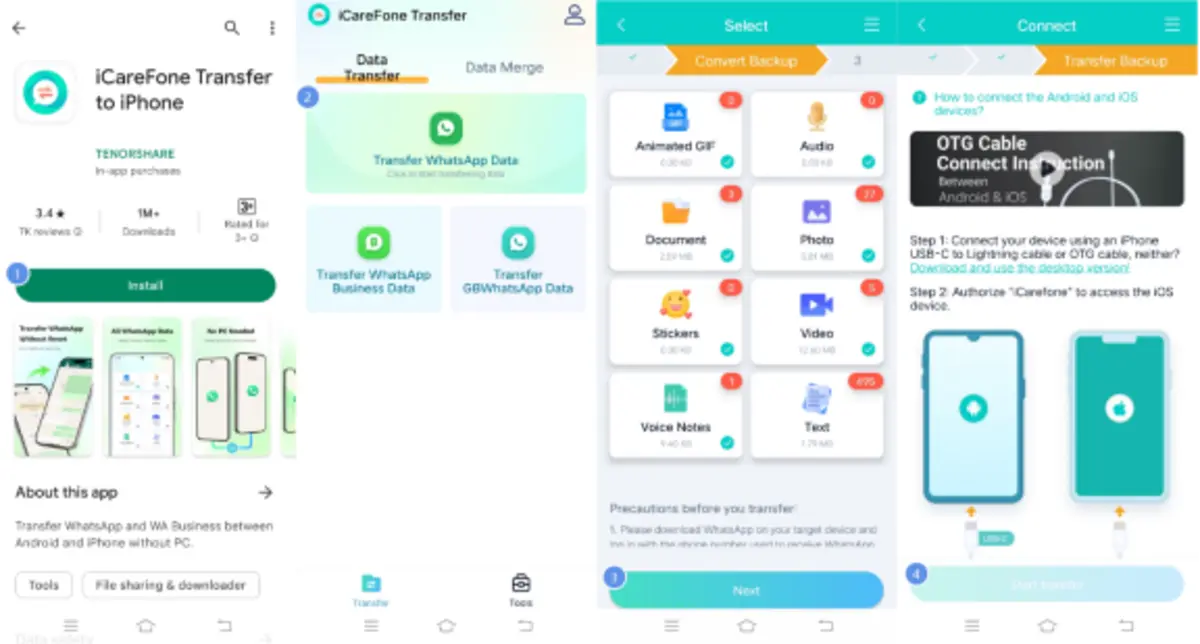
How to transfer WhatsApp from iPhone to Android using iCareFone
iCareFone Transfer is built to handle exactly this gap. It reads your WhatsApp data directly from your iPhone and moves it into a format Android’s WhatsApp app can use, without you needing to touch iCloud or Google Drive backups at all.
Requirements & setup
Before you start, make sure you have:
- iCareFone Transfer installed (a dedicated Android app)
- Both your iPhone and Android phone charged and within reach
- A USB or USB-OTG cable to connect the two devices
- WhatsApp installed on your new Android phone, but not yet signed in with existing chat history
Step-by-step guide
- Install and open iCareFone Transfer. Launch it on your computer or on your Android device, depending on the version you’re using.
- Select “iOS to Android.” From the home screen, choose the option to transfer WhatsApp data and pick the iPhone-to-Android direction.
- Connect both devices. Use a cable to link your iPhone and Android phone, or connect both to your computer if you’re using the desktop version.
- Choose your data types. Select which WhatsApp data you want to bring over — chat history, photos, videos, voice messages, documents, and stickers.
- Start the transfer. Confirm the transfer and keep both devices connected until it finishes. Larger chat histories with lots of media will naturally take longer.
- Set up WhatsApp on Android. Once the transfer completes, open WhatsApp on your Android phone and sign in with the same number to see your chats and media in place.
This same process covers how to transfer WhatsApp messages from iPhone to Android and how to transfer WhatsApp stickers — stickers are treated as part of your media library, so they move over alongside your photos and videos rather than needing a separate step.
How to verify your transfer was successful
Once the transfer finishes, it’s worth checking a few things before you uninstall WhatsApp from your old iPhone:
- Open a few older chats and confirm the full message history is there, not just recent messages
- Check that photos and videos load properly inside chats, rather than showing as broken thumbnails
- Open your sticker tray in WhatsApp and confirm your custom sticker packs appear
- Send a test message to confirm the app is fully functional on your new number and device
Give it a few minutes after the transfer before checking — some media can take a moment to finish syncing locally on the new device.
FAQ
Q: Can I transfer WhatsApp from iPhone to Android without a computer? Yes. iCareFone Transfer offers a mobile app version that connects your iPhone and Android phone directly through a cable, without needing a computer in between.
Q: Do I need to uninstall WhatsApp before transferring? Not on your iPhone — your data stays in place until the transfer is complete. On your Android phone, it’s best to have WhatsApp installed but not signed in with an existing chat history, so the transferred data has a clean slate to restore into.
Final thoughts
Moving from iPhone to Android doesn’t have to mean losing years of conversations or starting your sticker collection from scratch. Official tools like Export Chat only get you partway there, but with the right transfer tool, your full WhatsApp history — messages, media, and stickers included — can make the move with you. You can download iCareFone Transfer here and get your WhatsApp set up properly on your new Android phone.
Comments
Comments are loaded when you choose to open them, which keeps the page faster and lighter.