Upscale low resolution images online: what works
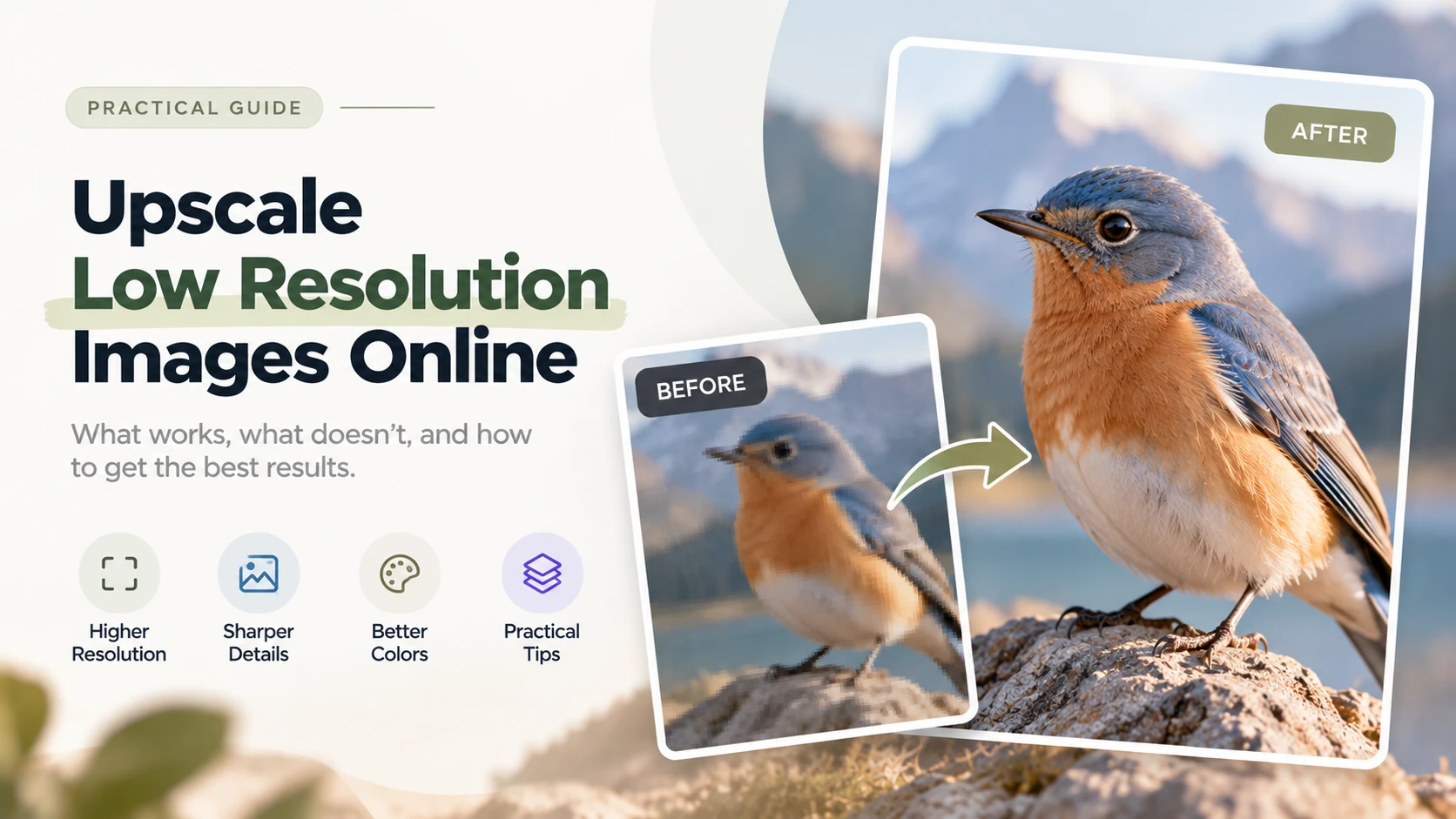
Low resolution is one of the most common image problems — and one of the most solvable. Whether it’s a product photo from a supplier, a screenshot that needs to be larger, or an old family scan, AI upscaling can recover usable quality from images that would otherwise be unusable.
This guide covers what ‘low resolution’ actually means in practical terms, which cases AI upscaling handles well, and the workflow for getting consistent results.
Defining ‘Low Resolution’ in Context
Resolution means different things depending on where the image will be used. The same image can be perfectly adequate for one purpose and completely unsuitable for another:
| Use Case | Minimum Useful Resolution | Notes |
|---|---|---|
| Social media post (Instagram, Facebook) | 1080×1080 px | Smaller images are upsampled by the platform, reducing quality |
| E-commerce thumbnail | 500×500 px | Zoom features typically require 1500×1500 px or higher |
| E-commerce zoom view | 1500×1500 px minimum | Amazon and similar platforms require this for zoom to activate |
| Blog featured image (full width) | 1200×800 px | Anything smaller pixelates at full-width display |
| Print at 5×7 inches (300 dpi) | 1500×2100 px | Web-sourced 72 dpi images are almost always too small for print |
| Large format print or banner | Varies by viewing distance | Close-range viewing needs higher dpi than distant signage |
What AI Upscaling Actually Reconstructs
When an image is scaled down or captured at low resolution, detail is lost — but not randomly. Real-world subjects have patterns: fabric has texture, faces have structure, edges follow predictable curves. An AI model trained on millions of image pairs learns these patterns and uses them to predict what the detail should look like.
In practice this means:
- Edges are sharpened by predicting where the boundary of an object actually lies, rather than just averaging the pixels on either side
- Textures are reconstructed using pattern knowledge — a blurry patch of fabric becomes a believable fabric texture, not just a smooth gradient
- Fine details like text, hair, and intricate patterns are recovered with significantly more accuracy than traditional bicubic upscaling
- The color accuracy of the original image is preserved — the model reconstructs structure, not color interpretation
Cases Where Upscaling Works Well
- Product photos at 500–800 pixels that need zoom-ready resolution for e-commerce — one of the highest-value applications, since upscaled products consistently perform better on detail-heavy product pages
- Scanned photos and film prints at low scan dpi — a 72 dpi scan from a flatbed scanner upscaled to 300 dpi becomes suitable for print
- Logo rescaling when only a small raster file is available and the vector source is lost — 2× upscaling from a clean 200×200 px PNG typically gives a usable 400×400 result
- Screenshots and screen captures that need to display at a larger size — upscaling recovers edge sharpness that gets lost in platform compression
- Stock images downloaded at preview or web resolution when the full-resolution version isn’t accessible
Cases Where Results Are More Limited
- Heavily motion-blurred images — upscaling increases resolution but doesn’t remove the blur from camera shake or subject movement
- Very dark photos with extreme noise — noise gets upscaled alongside detail; a denoising step before upscaling gives better results
- Extremely small source images (under 150×150 px) — the model has very little source data to work from; results are usable but detail reconstruction is limited
- Images where the original quality problem was lens distortion or chromatic aberration — these require correction tools, not upscaling
Step-by-Step Workflow
- Step 1 — Identify the target resolution you need. Know whether you’re upscaling for web display, e-commerce zoom, or print before you start — this determines which upscaling factor to use.
- Step 2 — Prepare the source image. Use the largest available version. Remove any compression artifacts with a cleanup tool if the image is heavily JPEG-compressed before upscaling.
- Step 3 — Upload to the upscaling tool. Browser-based tools accept JPG, PNG and WEBP with no software installation needed.
- Step 4 — Select the upscaling factor. 2× is sufficient for most web-to-web upscaling tasks. 4× is appropriate when the destination requires significantly higher resolution (print, zoom features, large display).
- Step 5 — Inspect the result at 100% zoom. Look at edges, fine textures, and any text within the image. If specific areas need further work, a second pass with a manual refinement tool can target them.
- Step 6 — Export in the right format. PNG for lossless quality; JPEG at 85–90% quality for web use where file size matters.
To upscale low resolution image online with AI reconstruction, Phototune image upscale supports 2× and 4× scaling with full-resolution output — no account or software installation required.
Resolution After Upscaling: What the Numbers Mean
| Source Resolution | After 2× Upscale | After 4× Upscale | Practical Use After 4× |
|---|---|---|---|
| 500×500 px | 1000×1000 px | 2000×2000 px | E-commerce zoom, social media full-size |
| 800×600 px | 1600×1200 px | 3200×2400 px | Blog headers, standard print at 4×6” |
| 1024×768 px | 2048×1536 px | 4096×3072 px | Large format web display, A4 print |
| 300×300 px | 600×600 px | 1200×1200 px | Thumbnails, small social posts |
Comments
Comments are loaded when you choose to open them, which keeps the page faster and lighter.