Raspberry Pi Desktop Gets Optional Dock, Launcher, and More
The Raspberry Pi Desktop has received its most visible set of optional upgrades in years. Developer Simon Long published the update on September 15, 2026, introducing a new icon dock, a graphical application launcher, and several quality-of-life improvements — all of them opt-in, leaving the classic taskbar experience intact for those who prefer it.
The Raspberry Pi Desktop has been around for over a decade. What began as a mildly customised LXDE environment has gradually shifted to a Wayland-based stack powered by labwc. The overall feel — a taskbar, status icons, and a main menu launcher — has stayed close to the Windows 95 / Apple System 7 era. The team has always valued that familiarity. Now, with this update, users who want a more current desktop style have the option to enable one.
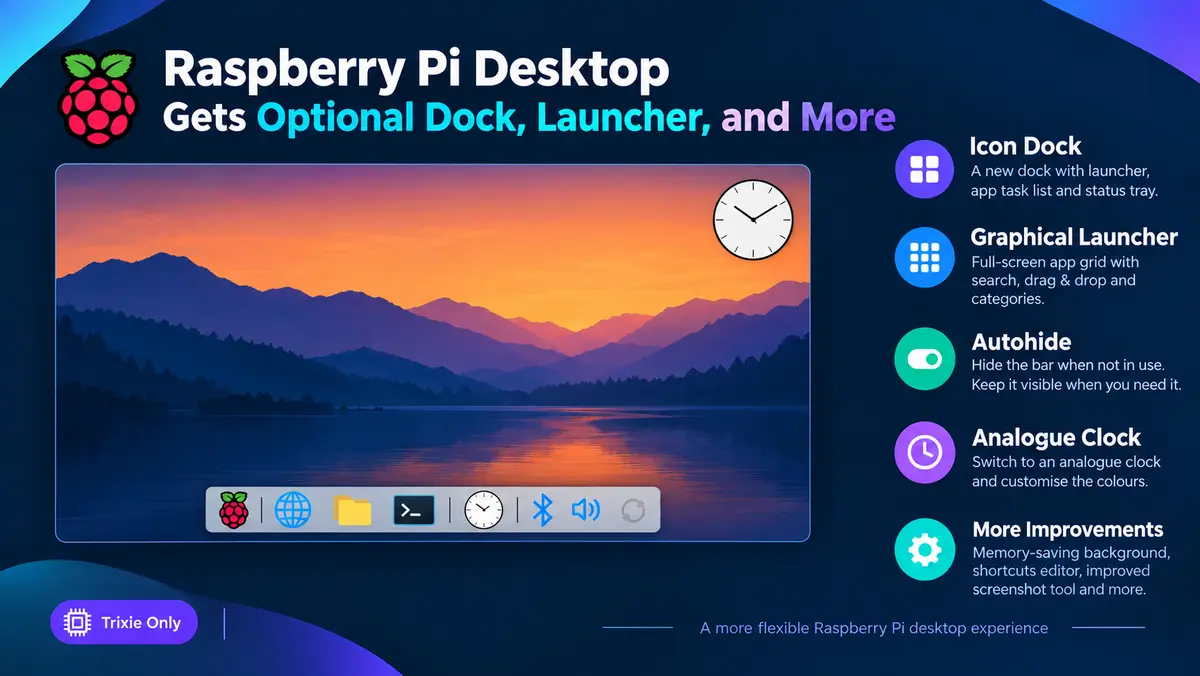
The New Icon Dock
The biggest addition is an icon dock that can replace the taskbar, run alongside it, or be ignored entirely. Two new widgets ship with it: a graphical application launcher and a combined quick launcher and task list.
The graphical launcher opens a full-screen grid of application icons when you click the Raspberry Pi logo. Icons can be dragged and rearranged, and a search box lets you filter apps by name. Keyboard navigation is supported too. For users with a large application library, enabling menu categories groups icons into a hierarchical view by category.
The task list widget replaces the classic window list. Running applications show a count of open windows on their icon. Clicking a running app brings all its windows to the front; if the windows are already in the foreground, a new window opens instead.
Customising the Dock
The dock is configurable through a new Dock page in the Control Centre, where you can adjust colour, position, and icon size. A new Widgets page lets you move plugins between the taskbar and the dock freely. The dock splits into two zones: the main area for launcher and task icons, and a tray for status icons displayed in a compact two-row layout.
One frequently requested feature now lands in both the taskbar and the dock: autohide. Enabling it slides the bar off screen when the mouse moves away and brings it back when the cursor returns to that edge. The Exclusive option prevents maximised windows from overlapping the bar — useful for keeping the clock always visible.
Three preset desktop styles are available on the Defaults page in Control Centre: Dock (dock only, no taskbar), Taskbar / Dock (both, with status icons on the taskbar), and Taskbar (the classic layout).
Other Changes
- Analogue clock mode: Right-click the digital clock widget and enable analogue mode. Clock face and hand colours can be customised.
- Memory-saving desktop background: Disabling “Active Desktop” in the Desktop tab switches from pcmanfm to the lightweight swaybg for rendering the wallpaper. Raspberry Pi recommends this for devices with less than 2 GB of RAM. Automounting of removable drives moves to the ejecter plugin when pcmanfm is not running.
- Keyboard shortcuts editor: A new Shortcuts page in Control Centre lets you view, edit, and create system-wide keyboard shortcuts.
- Improved screenshot tool: Pressing PrtScrn now opens a dialog offering to open the capture in an image editor or copy it to the clipboard. Holding Alt before pressing PrtScrn lets you select a region of the screen instead.
How to Get It
A fresh Raspberry Pi OS image with these changes is available now. For existing Trixie installations, run:
sudo apt update
sudo apt full-upgrade
Note that this update is for Trixie only; Bookworm now receives security updates only. Installing the update will not enable the dock automatically — use the Defaults page in Control Centre to switch styles.
The Raspberry Pi OS Trixie release last year introduced the unified Control Centre that these new settings plug into. If you are running Raspberry Pi OS 6.2, you are already on a Trixie base and can apply this update directly. For a broader look at the OS and its editions, see the Raspberry Pi OS overview on OpenSourceFeed.
For full details, see the official announcement on the Raspberry Pi website.