Cutefish 1.0 Nightly Hands-On: A Mac-Style Debian 13 Desktop
Cutefish 1.0 is back as nightly ISO builds, and we booted the late-November Cutefish 1.0 nightly on a real laptop to see how far the relaunched project has come. The short answer: the desktop already looks finished. It runs on Debian 13 “trixie”, it boots into a polished Mac-style session with a floating dock and a global menu bar, and most of the system settings you would reach for on day one are already there.
Keep in mind what this is. The project’s download page says plainly that nothing there is an official release yet, and only the newest nightly ISO is kept. Treat it as a preview to try from a USB stick or a virtual machine, not as a system for your main computer. If you followed the original CutefishOS 0.8 beta in 2022, almost everything below is new: the Cutefish distribution now ships a desktop written from scratch in C++ and Skia, from the compositor to the bundled apps.
Our test setup
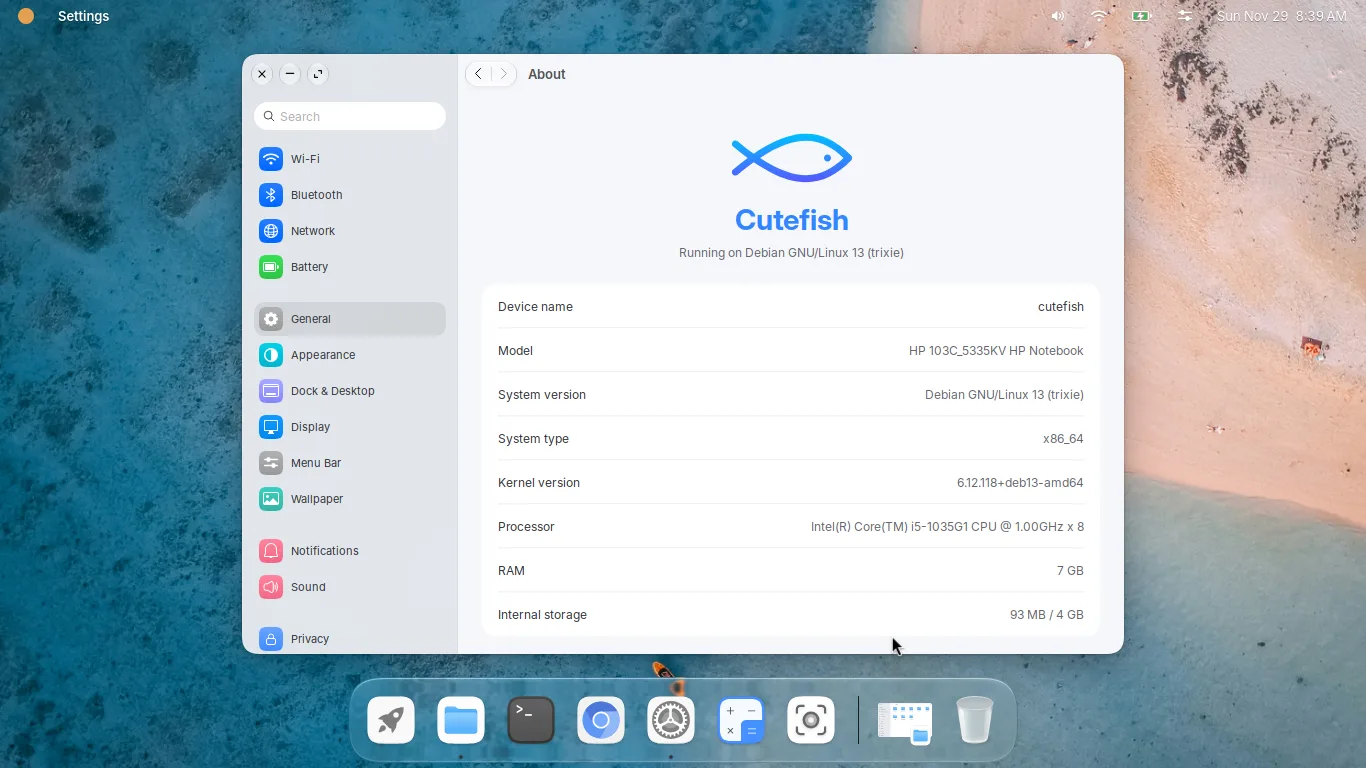
We ran the amd64 live ISO from a USB drive, without installing it. The laptop was an HP notebook with an Intel Core i5-1035G1 (4 cores, 8 threads), Intel Iris Plus G1 graphics and 8 GB of RAM, of which the system reports 7.5 GB as usable.
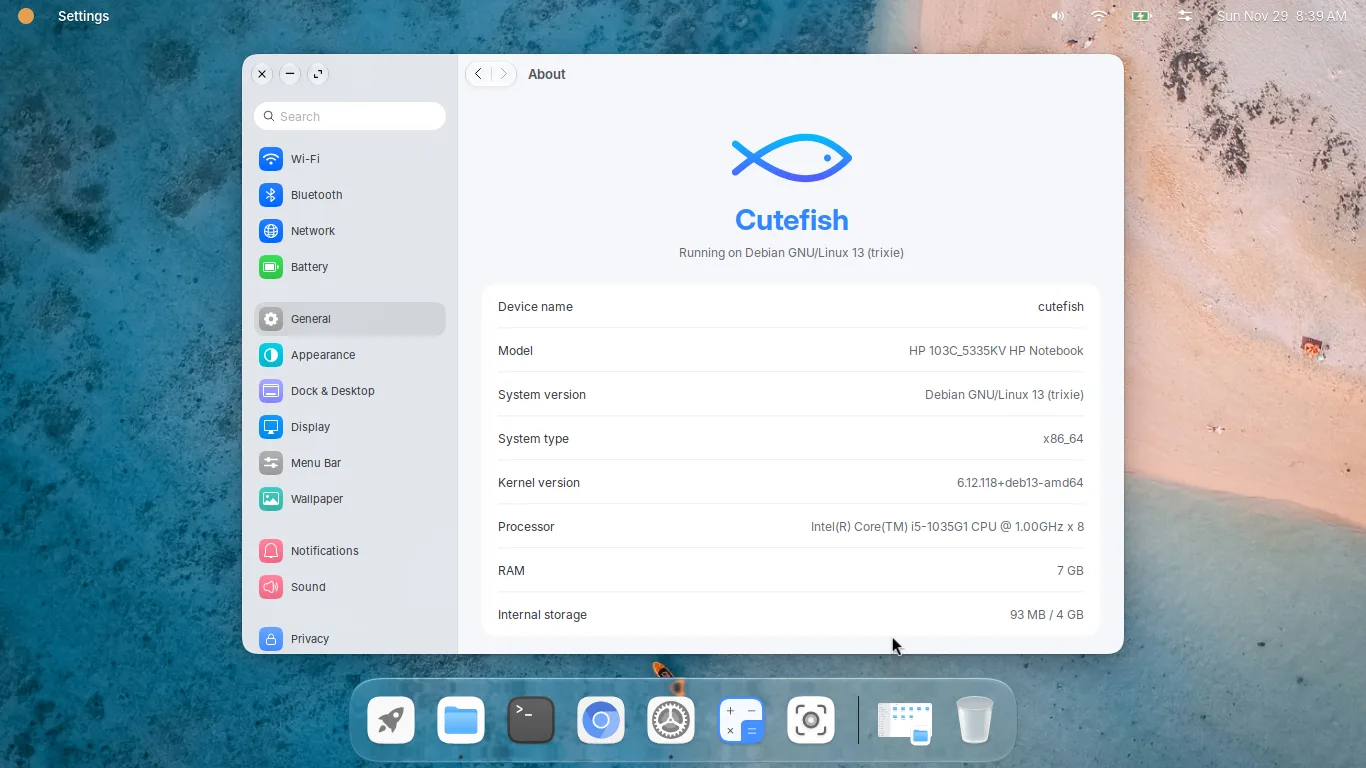
Settings > About showed what the image is built on:
- Base: Debian GNU/Linux 13 (trixie)
- Kernel: 6.12.118+deb13-amd64, Debian’s standard trixie kernel
- Architecture: x86_64 (an arm64 ISO is also offered)
Wi-Fi, Bluetooth, sound and battery status all worked out of the box on this hardware, and the internal drives, including the Windows partition, showed up in the file manager.
Desktop, dock and menu bar
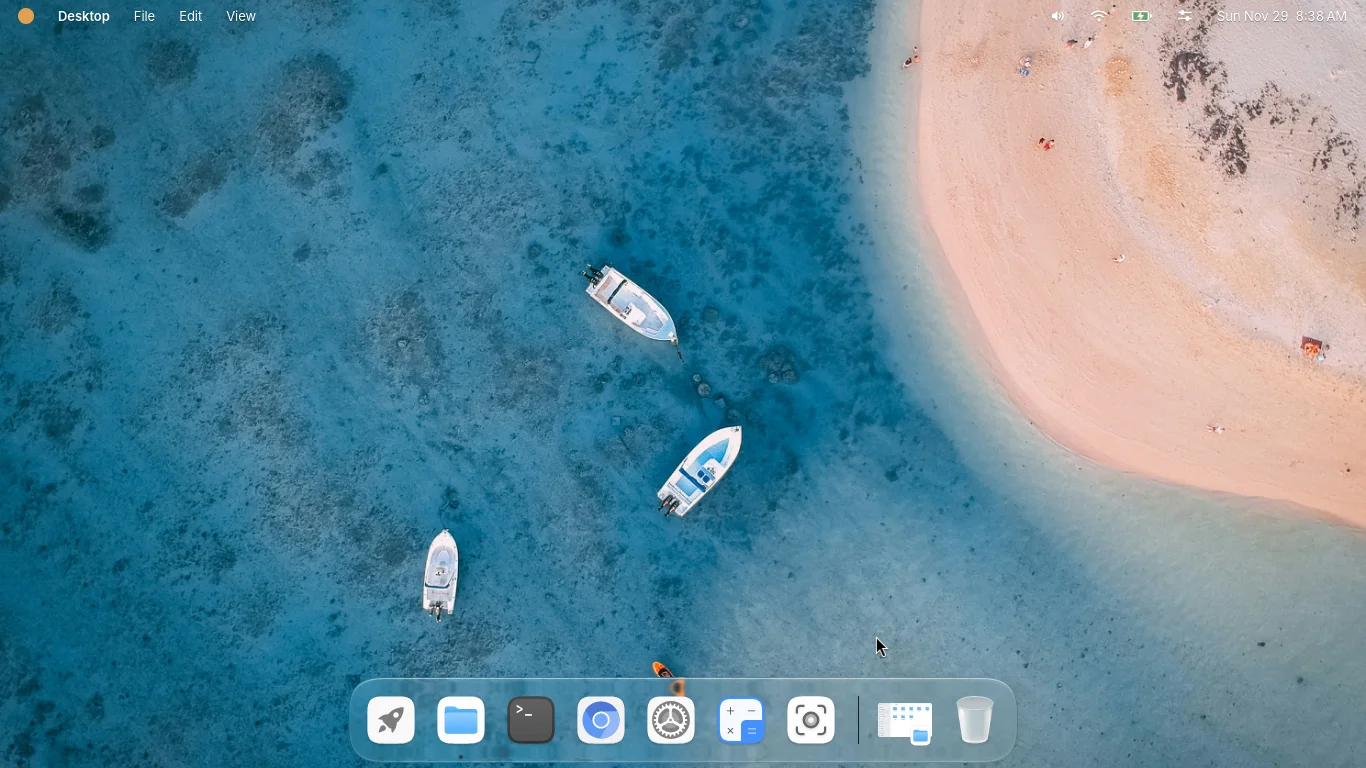
The desktop follows the macOS layout closely, and it does so with care rather than as a theme pasted on top of another desktop.
- Global menu bar: the top bar shows the active app’s name and its menus (File, Edit, View, Go, Window). Status icons for sound, Wi-Fi, battery and the Control Center sit on the right next to the clock.
- Floating dock: a translucent dock holds the app launcher, pinned apps and the trash. Running apps get a small dot underneath.
- Window buttons: close, minimize and maximize sit on the left of each title bar, in Mac order. They are grey by default; a setting turns them into colored buttons.
- System menu: the orange button at the top left opens About, Settings, Suspend, Restart, Shutdown, Lock screen and Log out. Shutting down asks first and tells you that every app will be asked to quit, so you get a chance to save your work.
The default wallpaper, an aerial beach shot, suits the glassy panels well. Twelve system wallpapers and eight solid colors are included.
App launcher and bundled apps
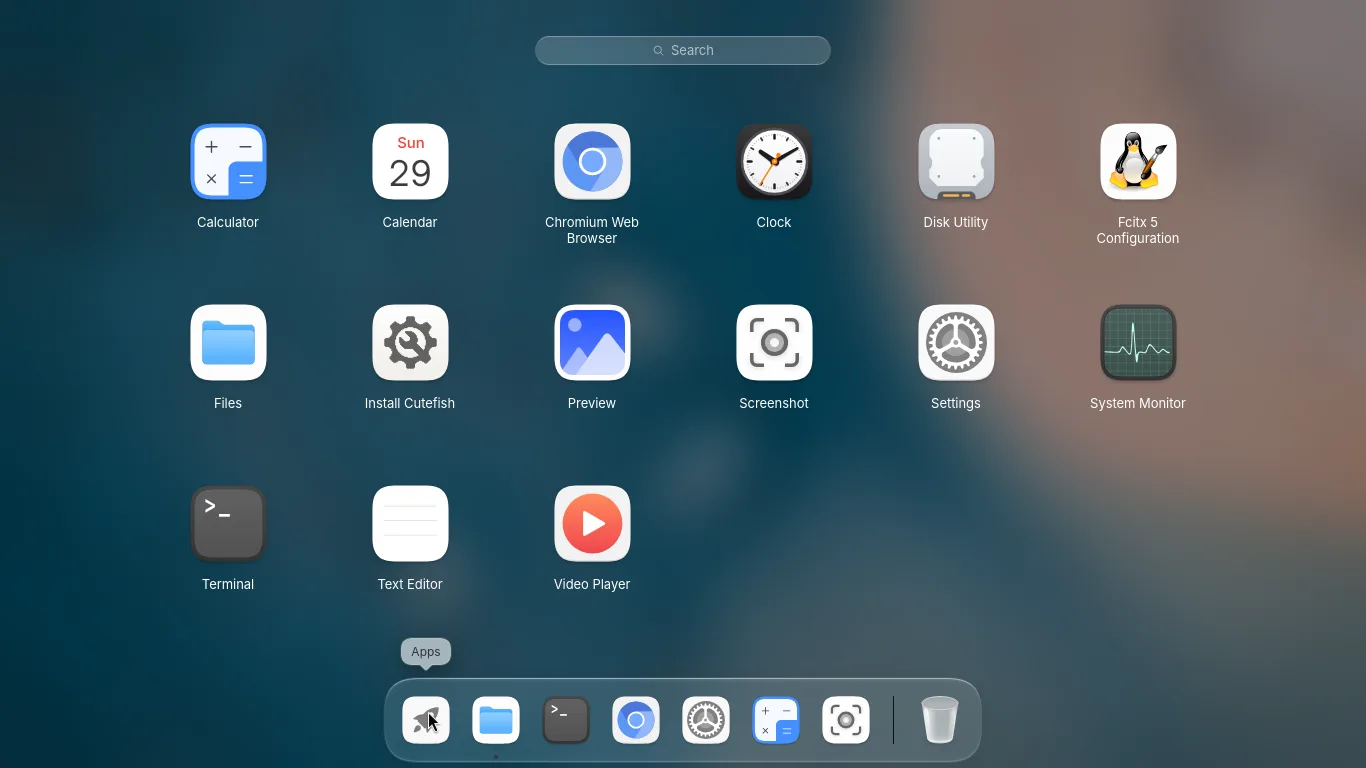
Clicking the rocket icon in the dock opens a full-screen launcher with a search field over a blurred background. Our nightly had 15 entries:
| Category | Apps |
|---|---|
| Everyday | Files, Text Editor, Calculator, Calendar, Clock, Preview, Video Player, Screenshot |
| System | Settings, System Monitor, Terminal, Disk Utility, Install Cutefish |
| Other | Chromium Web Browser, Fcitx 5 Configuration |
The bundled apps share one look: rounded windows, a light sidebar and large, clear icons. The Files app has Favorites and Internal Drives in the sidebar, back/forward buttons and search. System Monitor shows processes plus live graphs for CPU, memory, network, disk and GPU. Calculator keeps a running history line above the result. The project notes that these apps are still being refined, so your build may look a little different.
Chromium is the web browser in this image, and Fcitx 5 is included for input methods.
Control Center and notifications
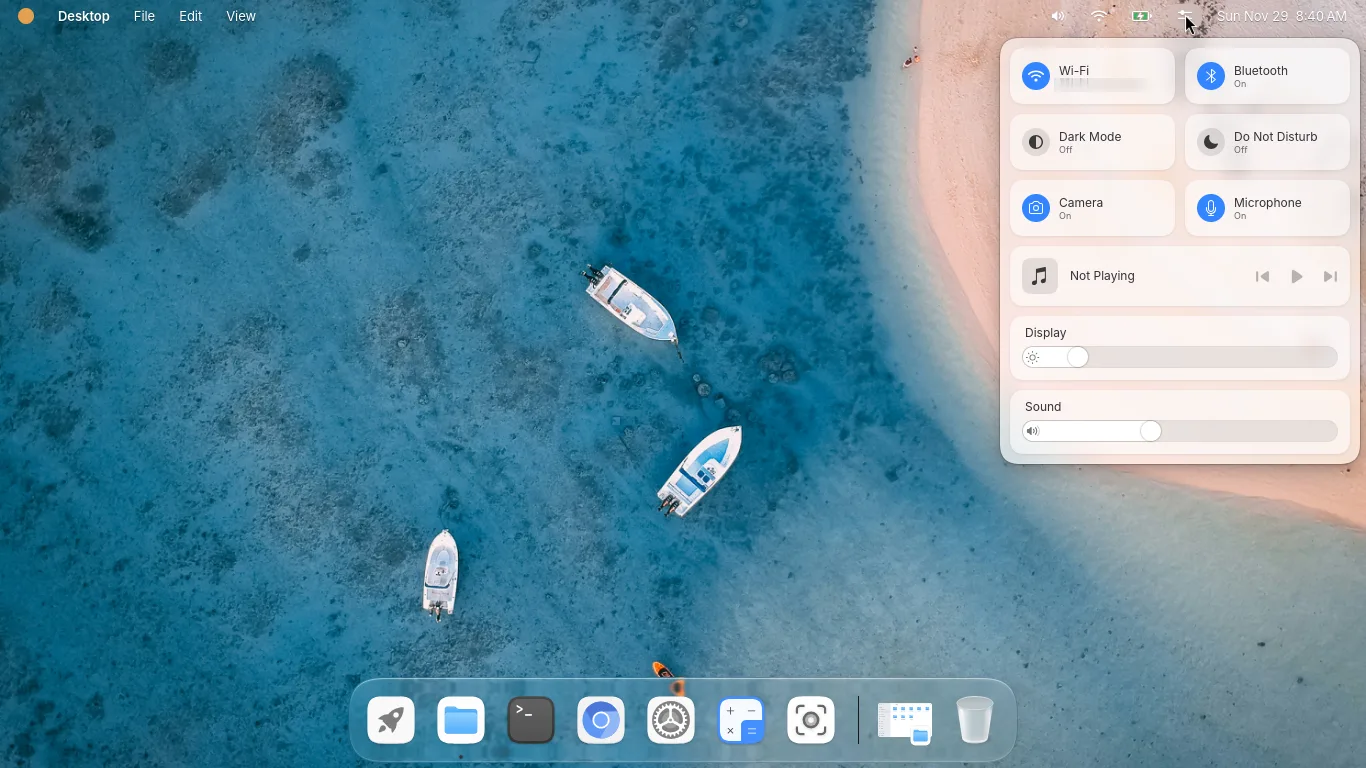
Clicking the toggle icon in the menu bar opens a Control Center with tiles for Wi-Fi, Bluetooth, Dark Mode, Do Not Disturb, camera and microphone, a media player card, and sliders for display brightness and volume. The camera and microphone tiles give a quick way to cut access to both.
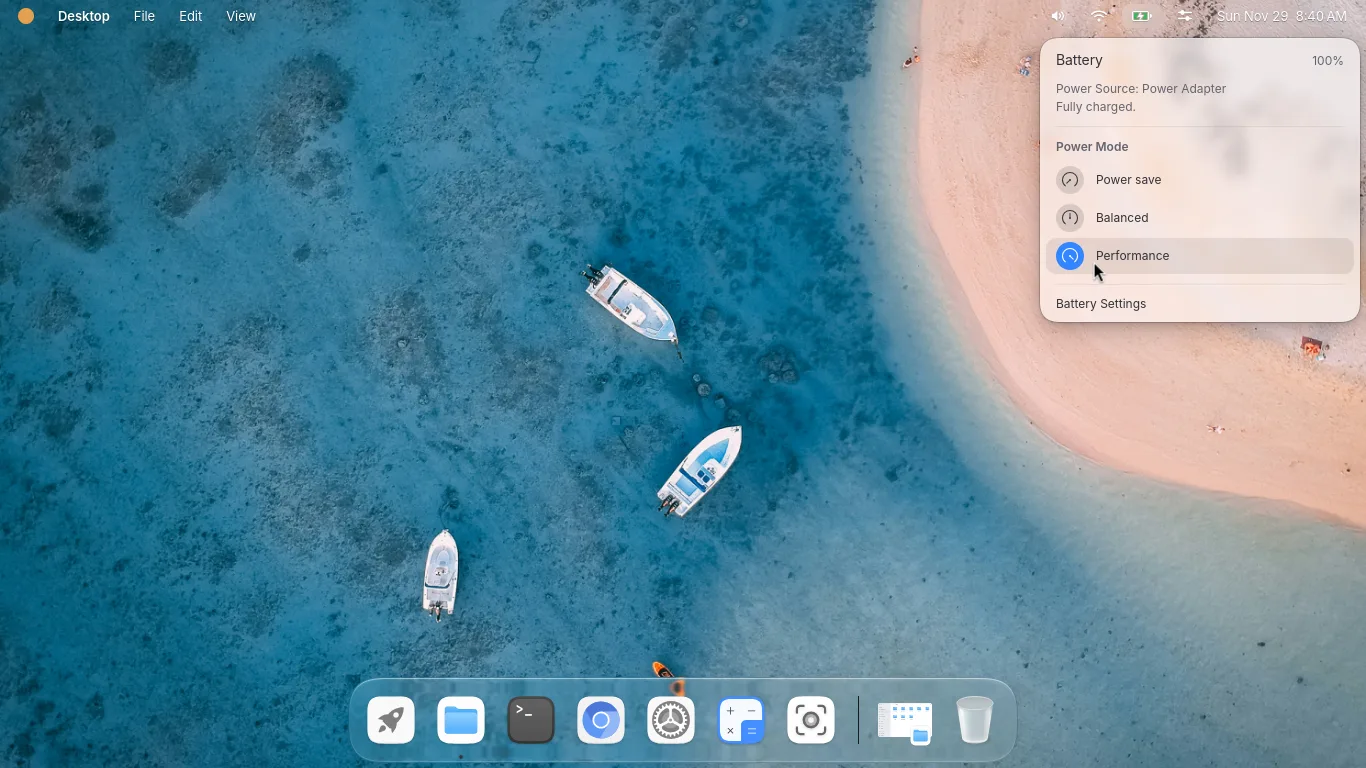
The battery and sound icons open their own small menus. The battery menu shows the power source and charge level and lets you pick Power save, Balanced or Performance. The sound menu has a volume slider and the output device.
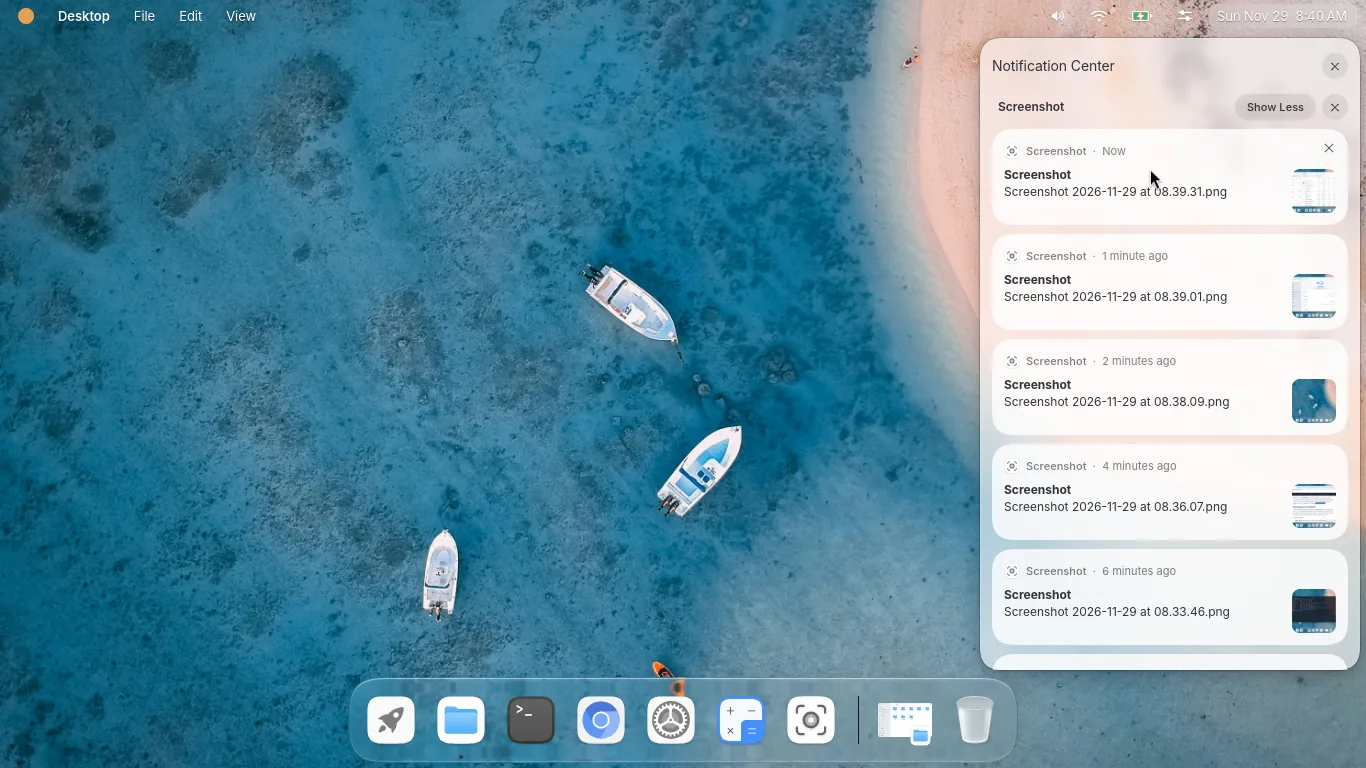
The Notification Center slides in from the right and groups alerts by app. In our session, every screenshot we took appeared there with a thumbnail, grouped under “Screenshot” with a Show Less button.
Settings
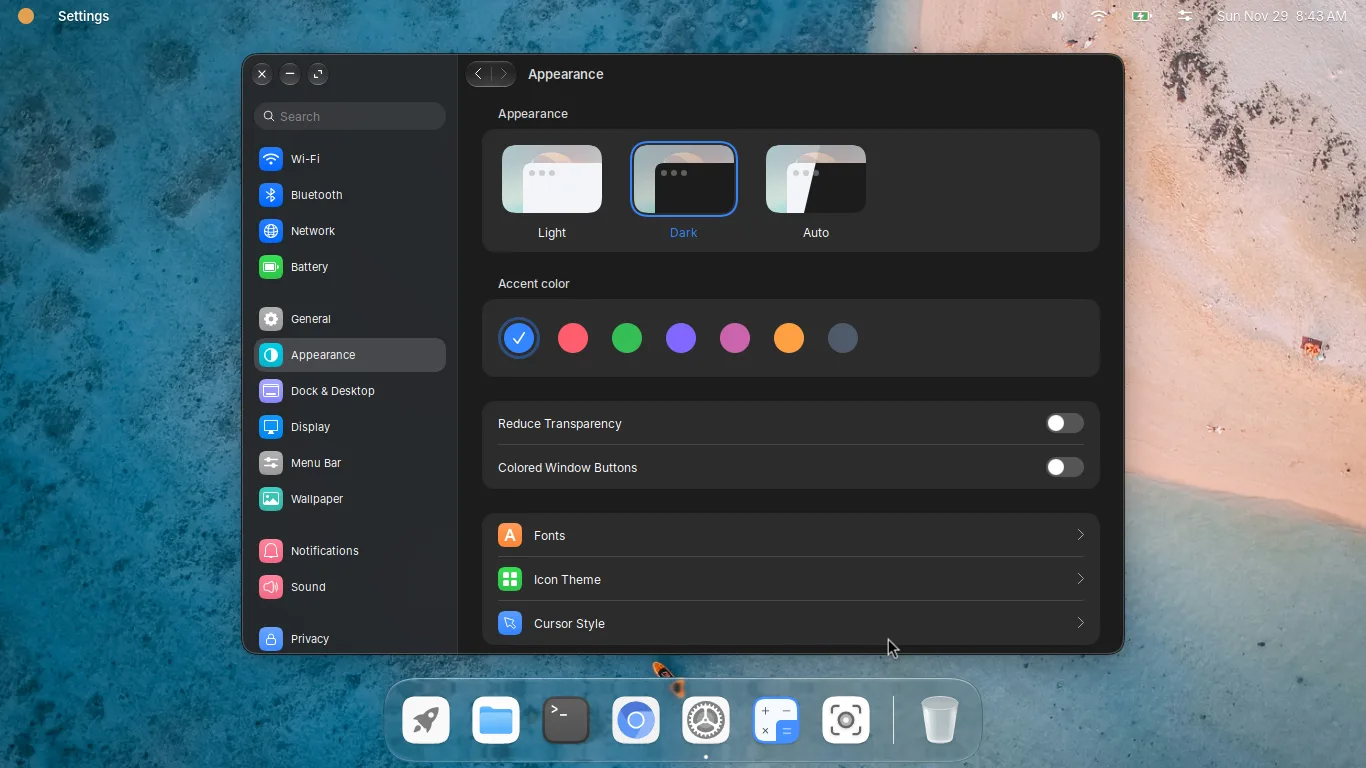
The Settings app is one of the most complete parts of the nightly. The sidebar covers Wi-Fi, Bluetooth, Network, Battery, General, Appearance, Dock & Desktop, Display, Menu Bar, Wallpaper, Notifications, Sound and Privacy.
- Appearance: Light, Dark or Auto mode, seven accent colors, Reduce Transparency, Colored Window Buttons, plus pages for fonts, icon theme and cursor style. Dark mode switches the whole desktop and the bundled apps at once.
- Dock & Desktop: dock on the left, bottom or right; size; magnification; a “glass effect” slider from clear to tinted; floating or docked style; and Always show, Always hide or Smart hide.
- Wallpaper: your own images, the 12 system wallpapers, or a solid color.
Under the hood
The project’s site describes cutefish-compositor as its Wayland compositor, which also handles window management, the desktop shell and the lock screen. The UI toolkit draws with Skia. Both show up in System Monitor: cutefish-compositor, xdg-desktop-portal-cutefish and several small Cutefish services (mount, clock alarms, calendar reminders, polkit agent). We also saw an Xwayland process, which suggests older X11 apps are covered.
Memory use was modest for a live session:
- System Monitor reported about 1.0 GiB of 7.5 GiB in use with a few apps open.
- In htop, about 45 minutes into the session, the whole system used 815 MB, and the compositor itself about 190 MB resident.
That lines up with the project’s own claim of under 1 GB in use after login, though our numbers come from a live USB session, not an installed system.
The live session runs from a squashfs image with an overlay, as df -h in the Terminal shows. One side effect: the About page lists internal storage as the live overlay (93 MB of 4 GB), not your disk.
The installer
“Install Cutefish” sits in both the launcher and the dock. It opens a clean, Mac-style setup window that starts with a language picker, noting that the choice applies to both the installer and the installed system. We stopped at this first screen because this was a live test. The November update on the project’s site says the desktop now ships in 17 languages.
What we did not test
The Cutefish site also talks about Reef, a layer that runs some Mac apps (CotEditor, NetNewsWire and Ghostty are named), and about letting AI agents such as Claude Code or Codex control the desktop with your consent. We did not try either feature in this session, so we can’t say how well they work in the current ISO.
Who should try Cutefish 1.0 Nightly?
- Try it if you like the macOS layout and want to see a Linux desktop built for it from the ground up, or if you followed CutefishOS before and want to see the relaunch for yourself.
- Wait if you need a stable system. There is no release yet, builds change every night, and the apps are still being refined.
For a Mac-like Linux desktop you can use today, Zorin OS 18 and elementary OS are more mature options. Cutefish is the one to watch if you want that look on a lean Debian 13 base.
Download Cutefish 1.0 Nightly
Nightly ISOs for amd64 and arm64 (about 1.6 GB each) are on the official Cutefish download page. Each image has a .sha256 checksum and a package list, and builds can also be checked with gh attestation verify against the cutefishos/packaging repository. On an existing Debian 13 system, the page also offers an APT repository with the cutefish-desktop package.
Write the ISO to a USB stick with a tool such as Ventoy, Fedora Media Writer or dd, and boot it to try the live session.
Screenshots
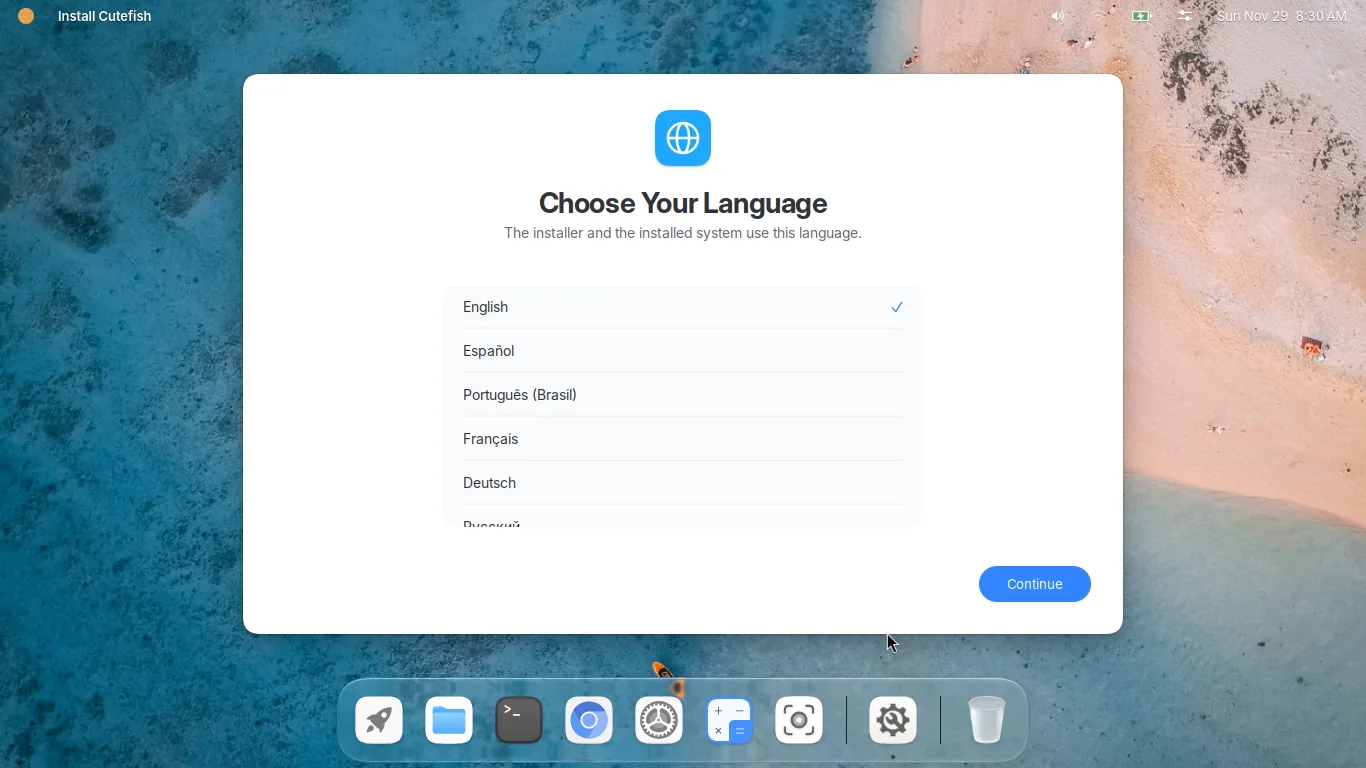 01 installer language selection
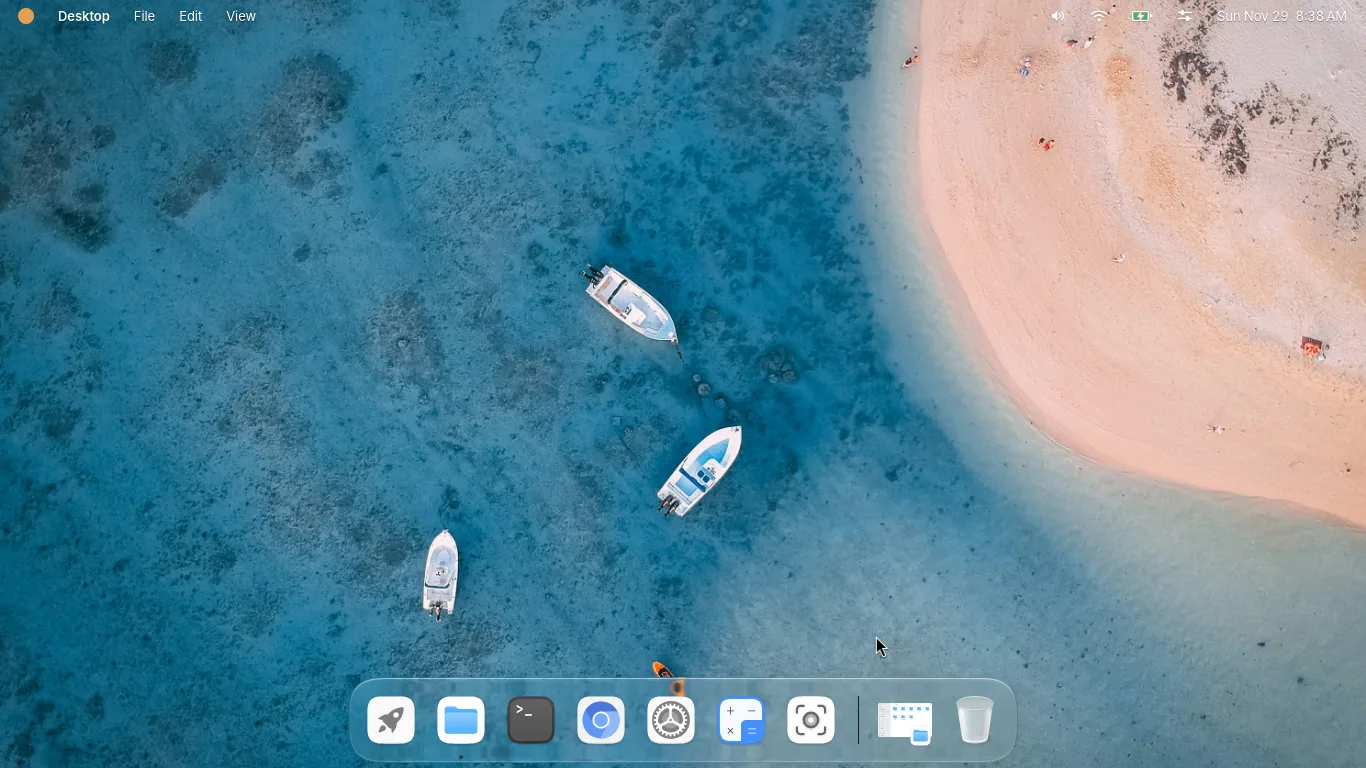 02 desktop with floating dock
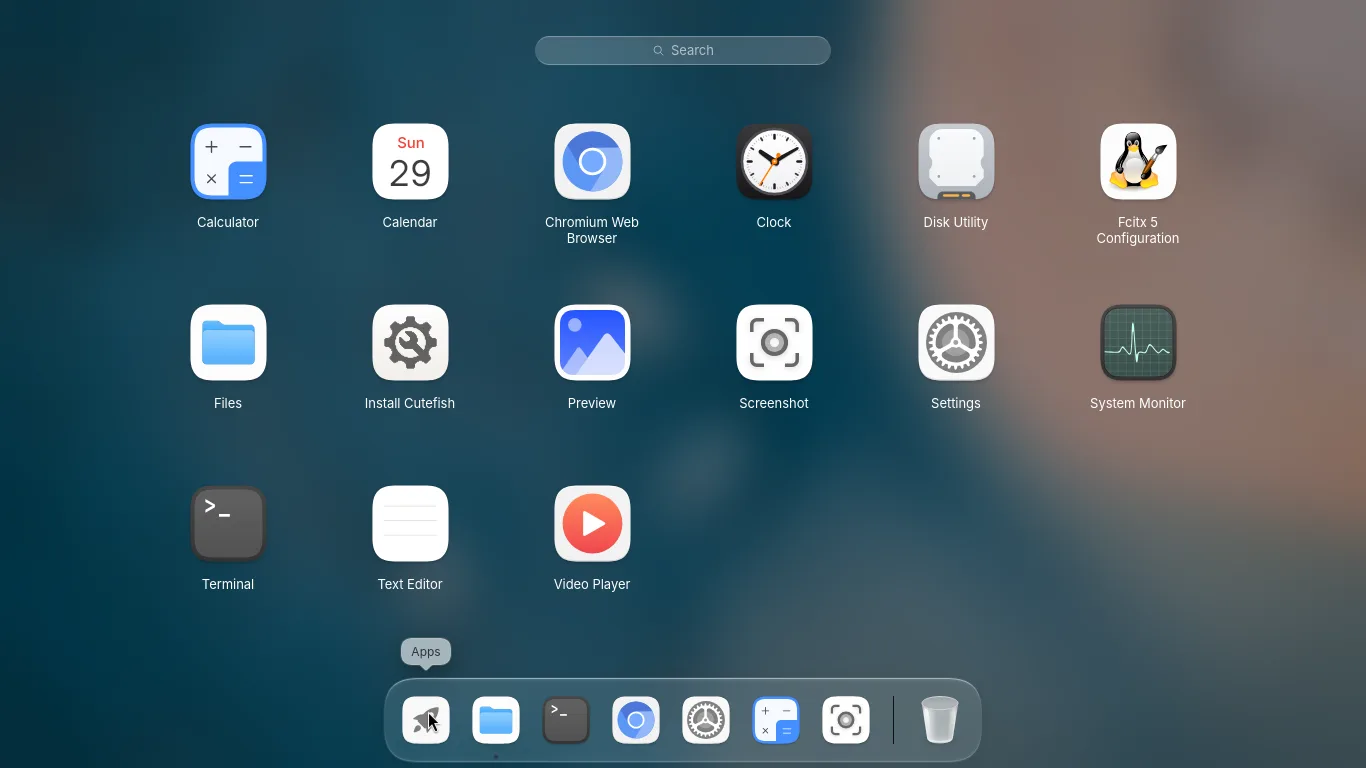 03 app launcher
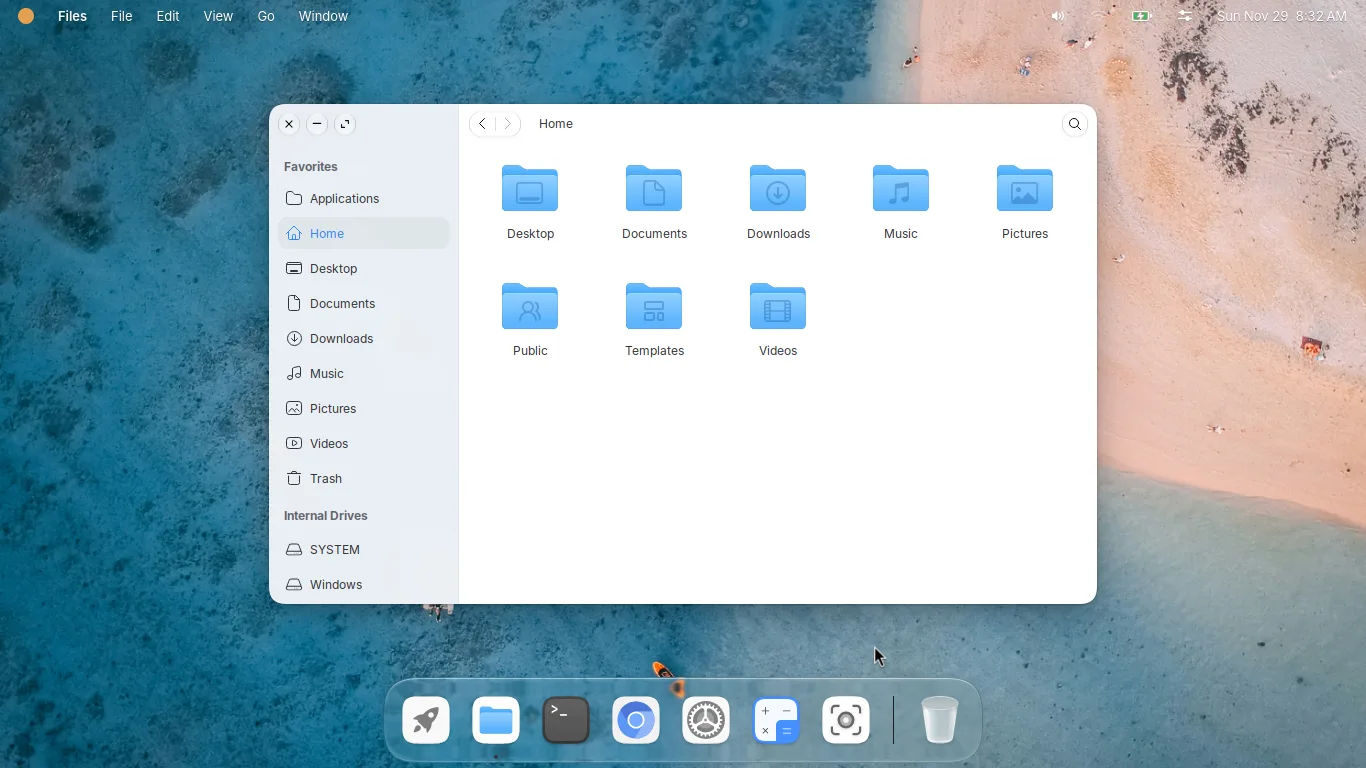 04 files app
 05 settings about debian 13
 06 control center
 07 notification center
 08 battery power modes
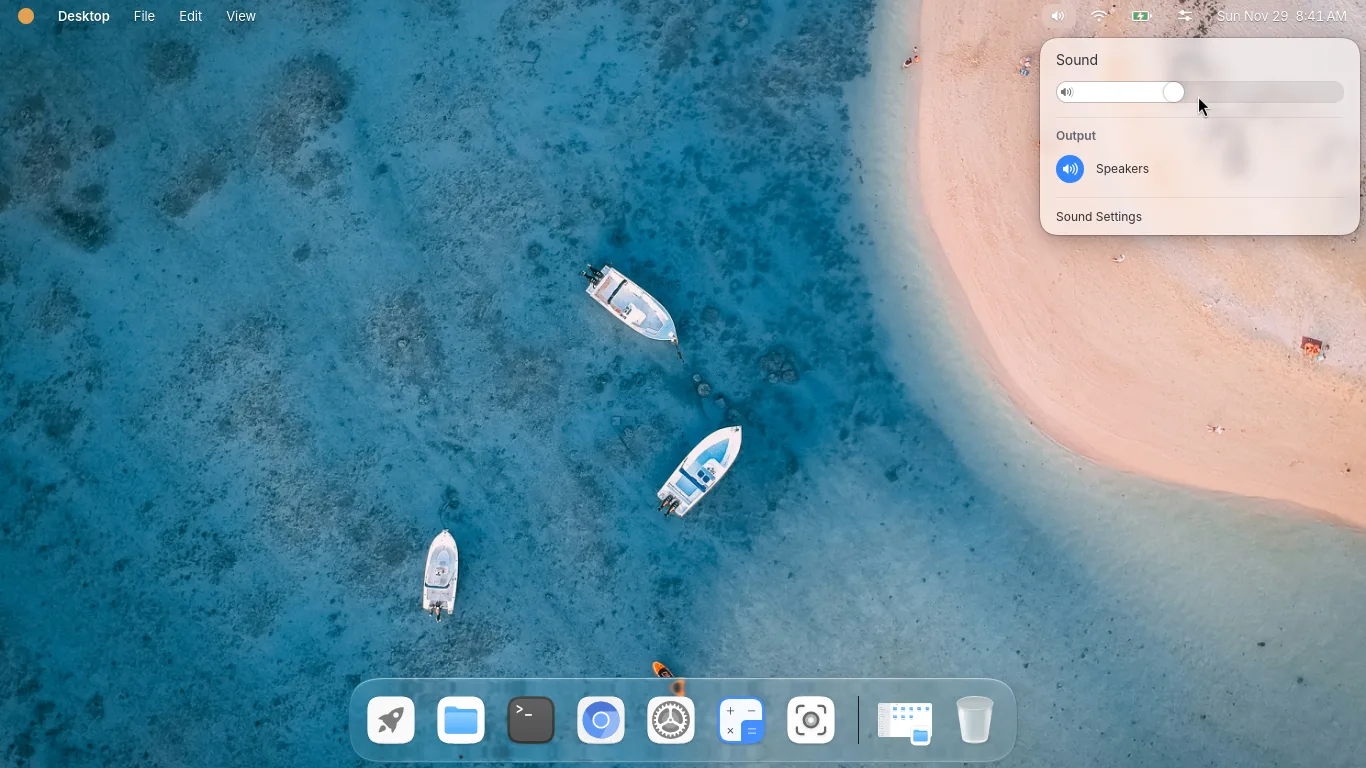 09 sound menu
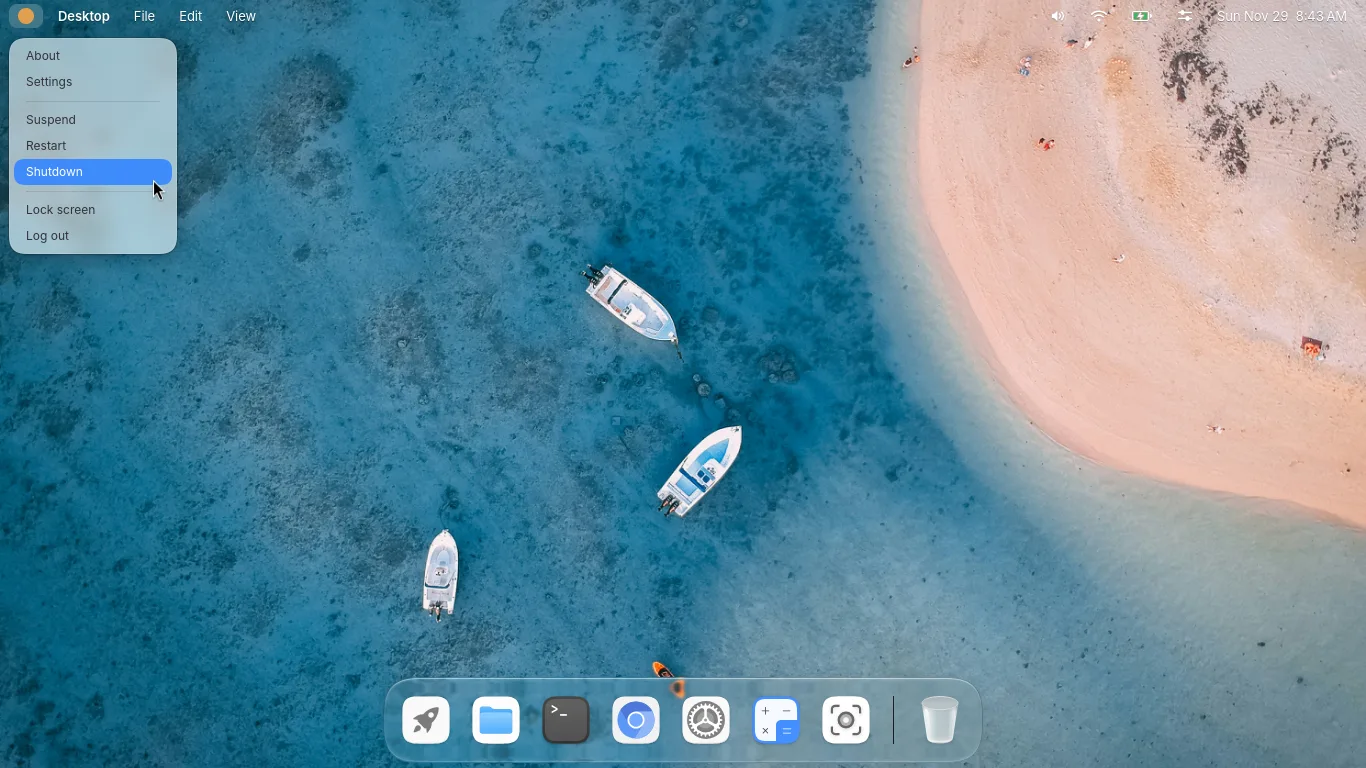 10 system menu
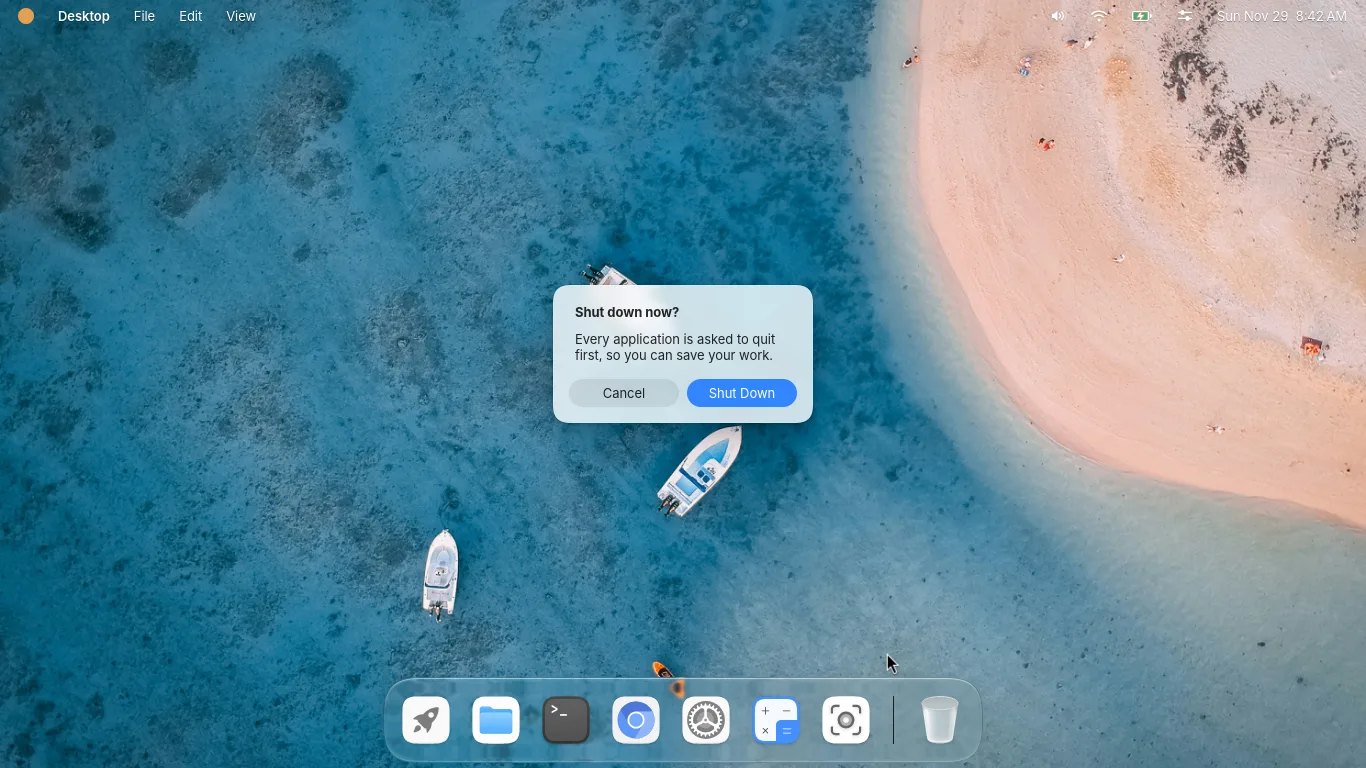 11 shut down dialog
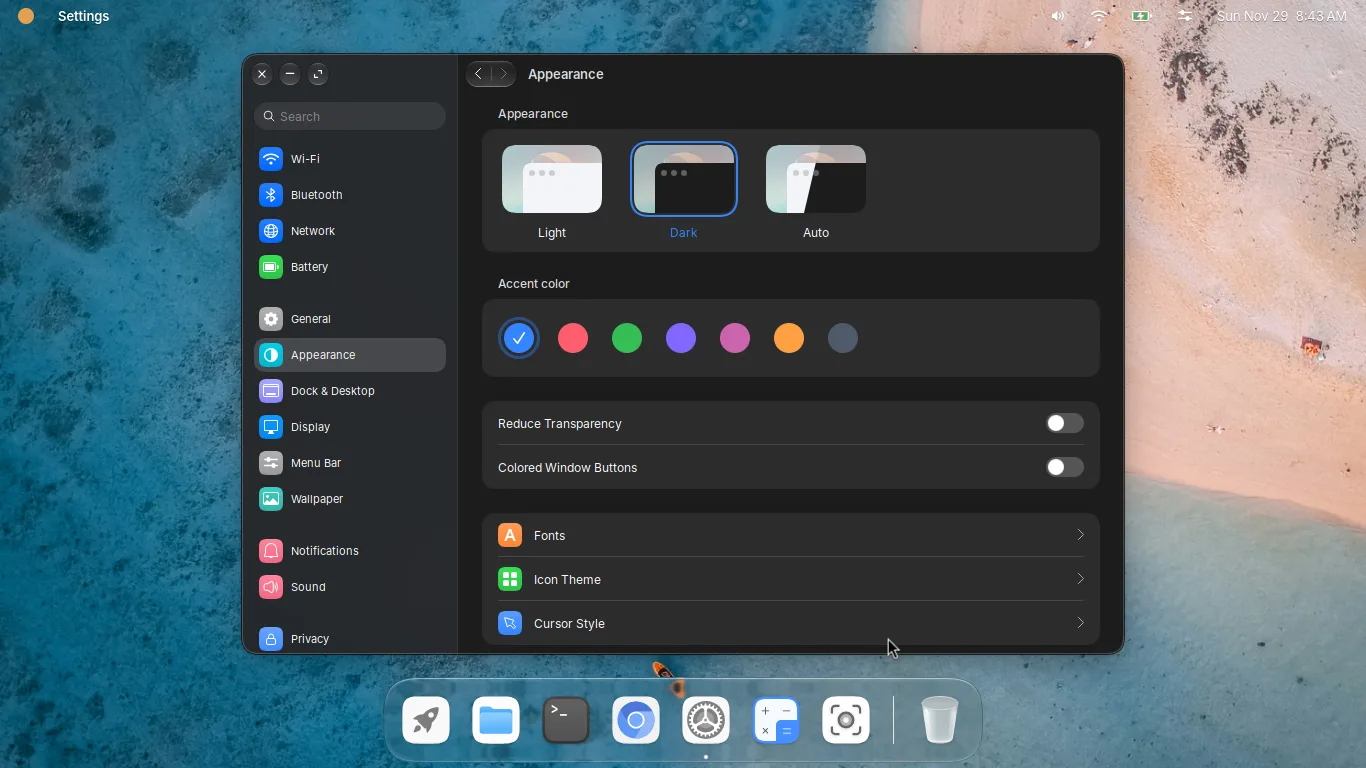 12 appearance dark mode
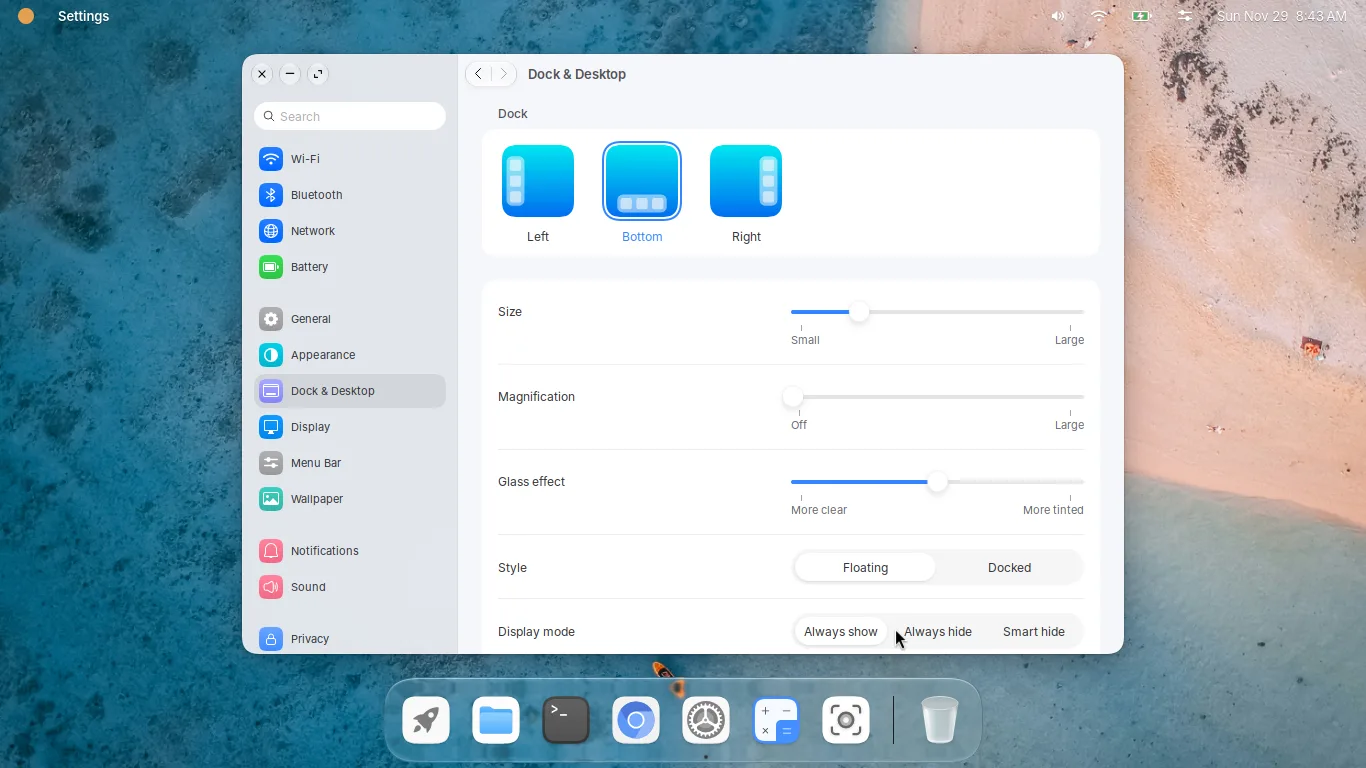 13 dock and desktop settings
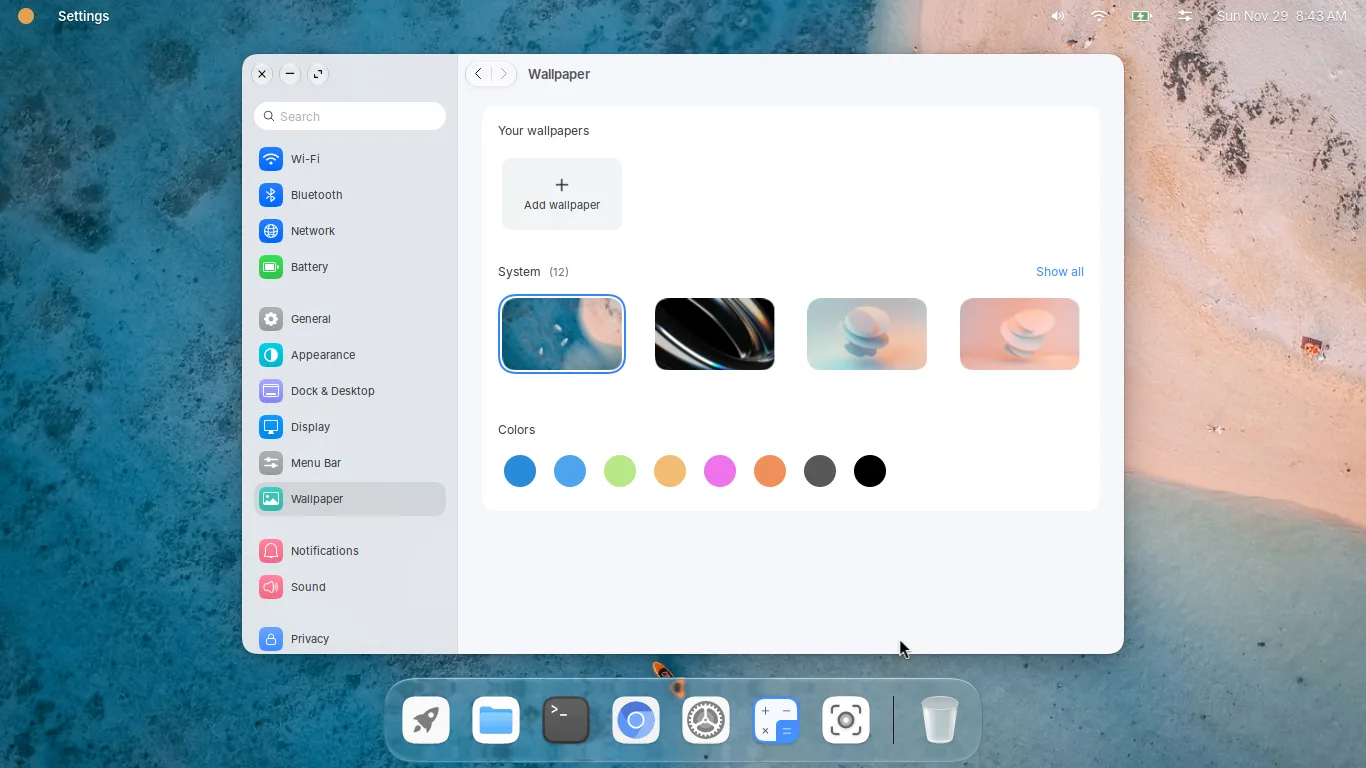 14 wallpaper settings
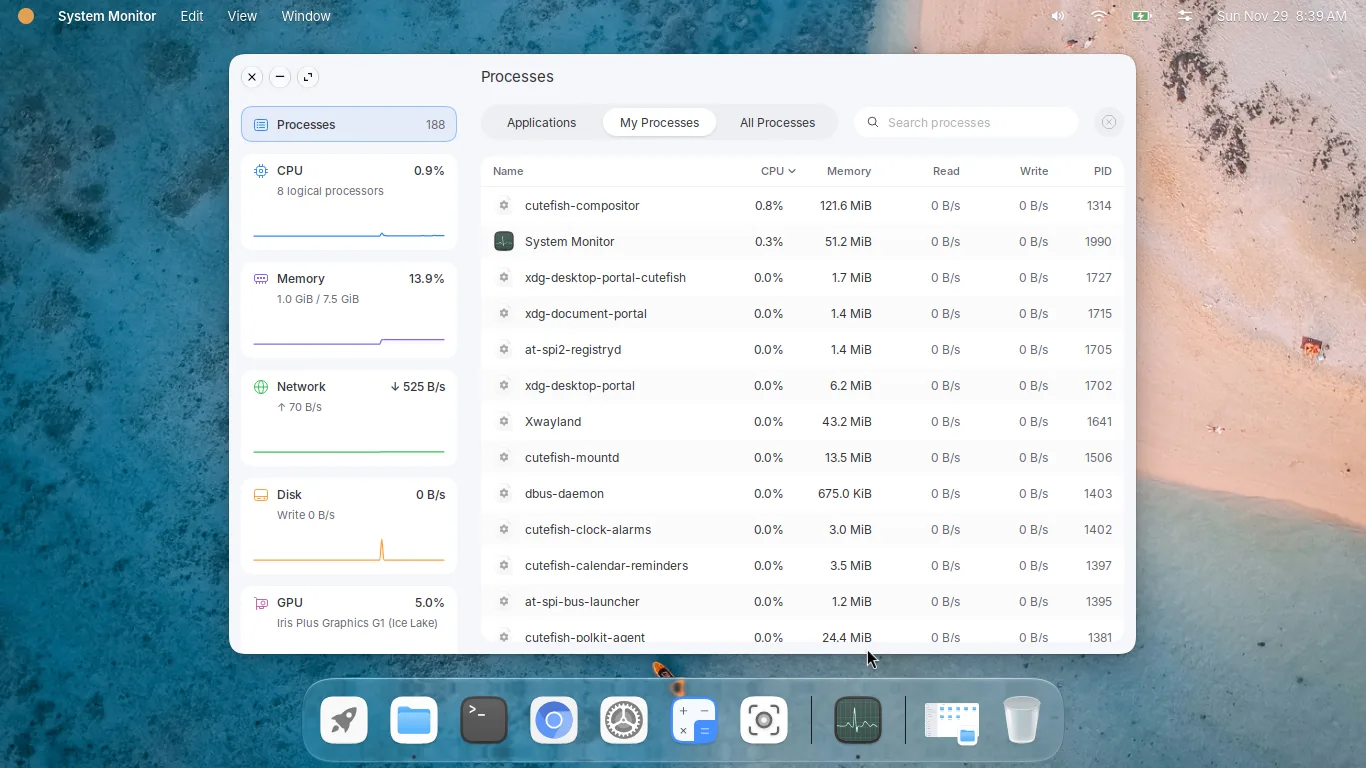 15 system monitor
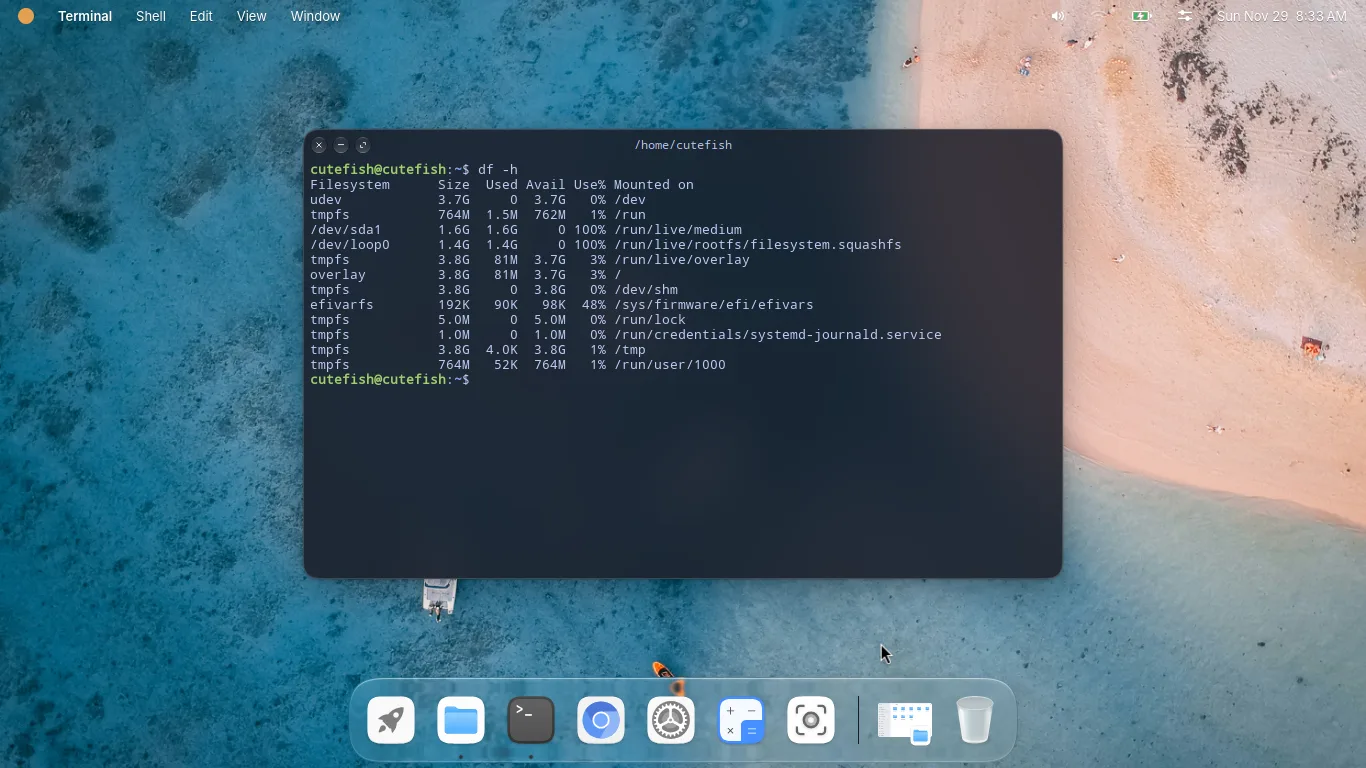 16 terminal live session
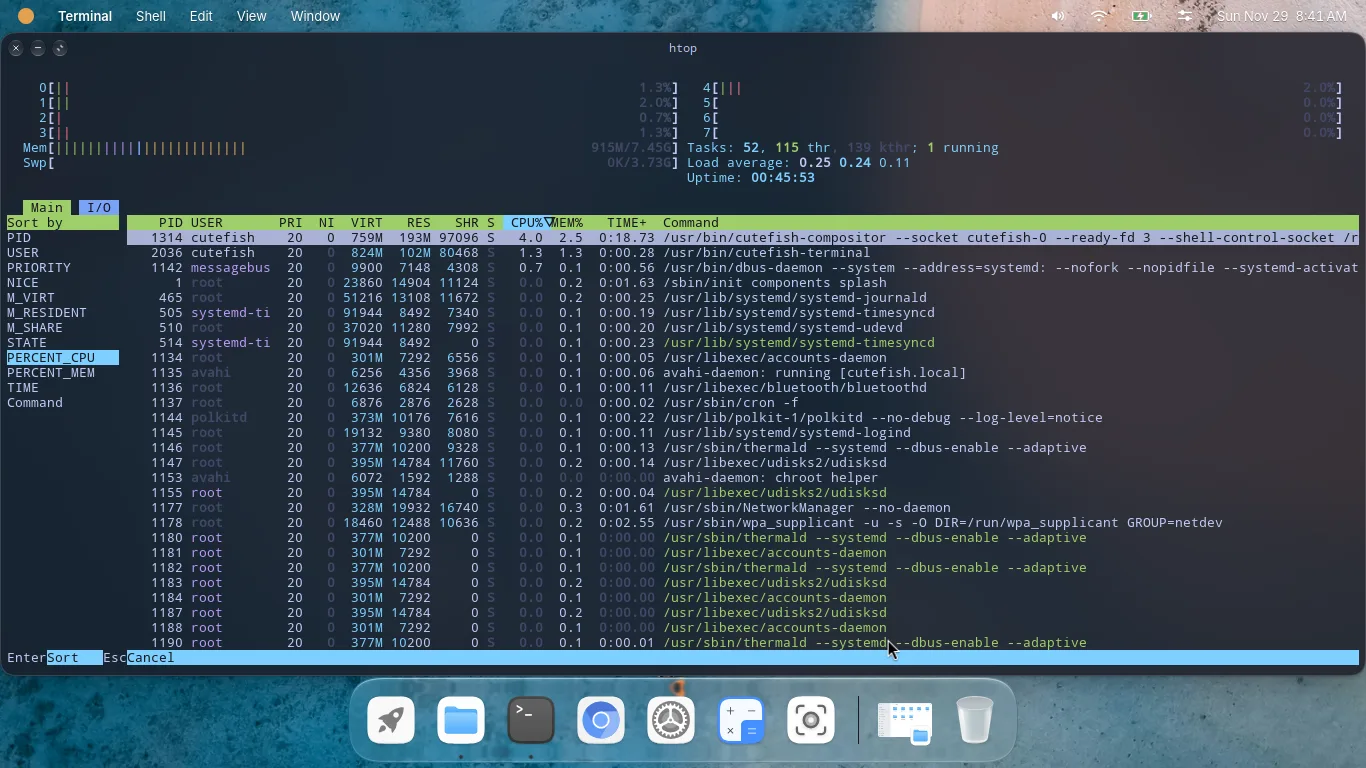 17 htop in terminal
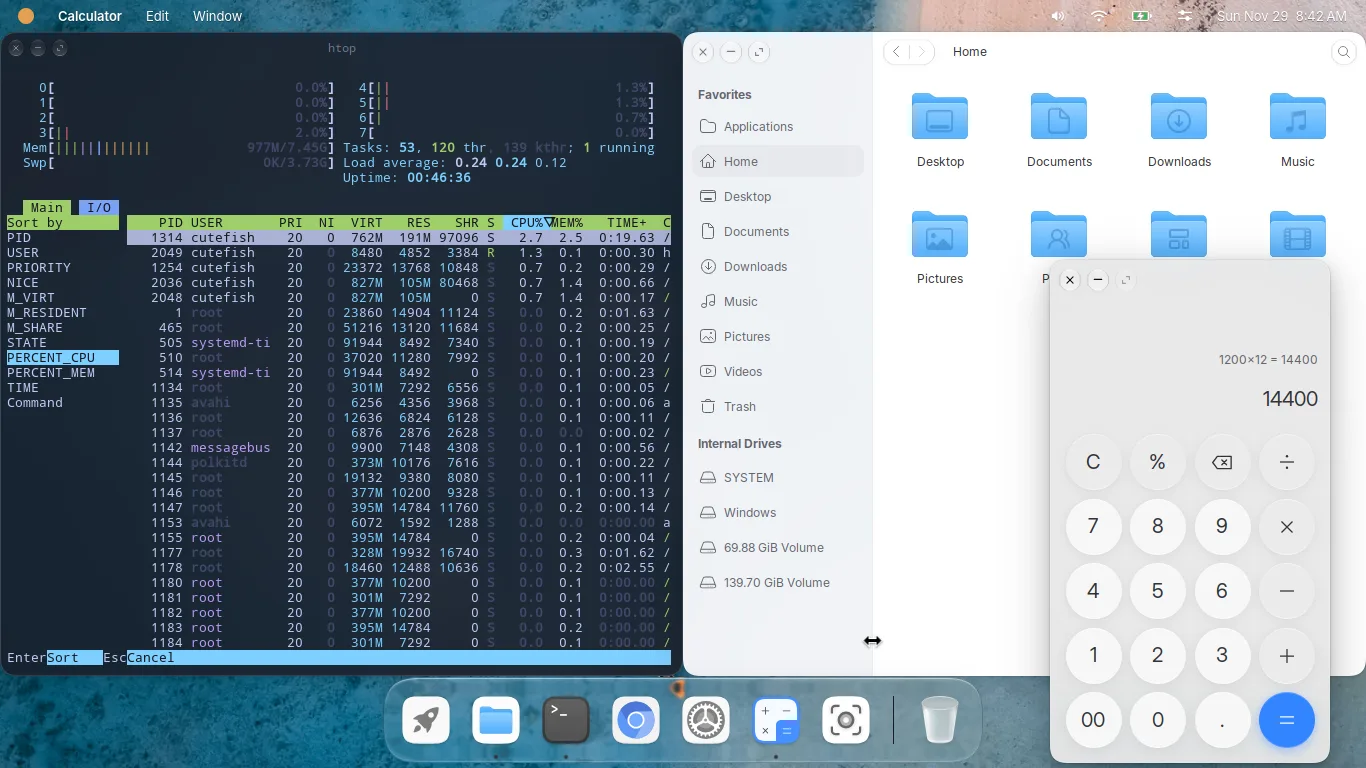 18 multitasking
References
- Cutefish official website
- Cutefish downloads and nightly ISOs
- Cutefish news
- Cutefish on GitHub
- Cutefish 1.0 Nightly in 37 seconds (YouTube Short)
Cutefish 1.0 Nightly video tour
For more videos, subscribe our channel DistroScreens on YouTube.